Managing help
·
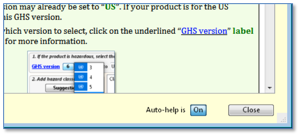
To set or cancel automatic help (this
window): Click on the “Auto-help is” on/off
pushbutton.
·
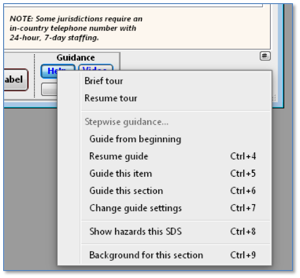
To display this help window manually
(when automatic help is off): Click on the Help
button on the entry form (shortcut: [Ctrl]-?) and select “Background for this section”. The direct shortcut is [Ctrl]-9.
·
To get an overview:
o
Take the orientation tour to
see how the SDS entry form works: Click on the Help button
and select “Brief tour”.
o
Read the “Features common to most SDS form sections/tabs” portion
of the background help for SDS Section 1 (Tab "1 Identification").
·
For brief tips, hover with
your mouse over the object of interest.
·
To learn additional details and
requirements, read the details section, immediately
below.
|
"Label" tab (for generating GHS labels) — details
Contents
GHS label content
US-OSHA
requirements
EU/EEA requirements
SDScribe™
label implementation
Selecting a
language
Hazard items for
non-English labels
Entry form features
UN number, Transport hazard class(es), Packing group, Proper shipping name
(alphanumeric fields)
Shipping labels (1,2,3) (drop-down
menus)
Lot, Net wt., Exp. on (two alphanumeric fields and one date field)
Build label (button)
Copy picture (button)
Word processing
area
Label
generation options
Label format to use
Ingredients
Rebuild style sheets (advanced topic)
Use an alternate font (default is Arial)
Include trade secrecy info. (where available)
CA Prop 65 (if relevant)
Logo scaling
For information on items common to most areas of the
SDS entry form, refer to the "Background for this section" item in
the Guide menu when viewing Section 1 (Identification).
The purpose of the Label tab is to generate
a GHS label for the product in a word processing area, using information
from other tabs on the SDS entry form.
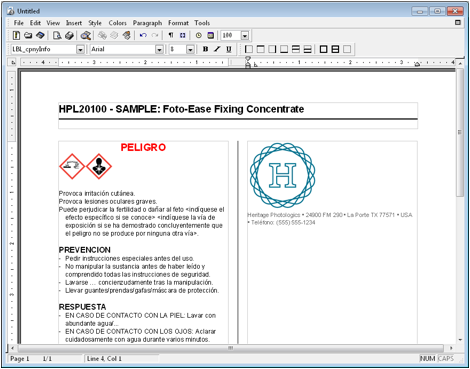
Sample GHS label (partial), shown in word processing area on the
"Label" tab. The language used for the label reflects the language
selected at the top right on the SDS entry form.
GHS label content
By providing a few, basic elements in a standard format,
GHS labels provide a quick reference to handlers, users, transporters, and
persons who store hazardous chemicals.
A GHS label contains the following items:
·
The product identifier as used
on the SDS. Identifiers include the product name, manufacturer's part/SKU
number(s), common chemical name (if relevant), and identification numbers like
the CAS number, EC number, REACH number, etc.
·
The name, address, and telephone number of the chemical
manufacturer, importer, or responsible party
·
The signal word
·
Hazard (H-) statement(s)
·
Precautionary (P-) statement(s)
·
Pictogram(s)
Hazard statements and precautionary statements can be combined
or consolidated to reduce label text and improve readability, provided
that the results convey all hazards and precautions. Because of the many
possible ways of consolidating these statements, however, the program
leaves that option up to you. It will generate the complete
statements, and then you (the person who best understands the product
characteristics) can combine them together as you feel is appropriate.
Supplementary information. Items in
addition to the bulleted items above can be included on a GHS label, provided
that the information "provides further detail and does not contradict or
cast doubt on the validity of the standardized hazard information". The supplementary information should be
placed on the label so that it does not interfere with the user's ability to
identify the required items.
The program provides options for inclusion of
supplementary information, through specific SDS fields:
·
Non-GHS classified hazards, in
the "Other hazards (not otherwise classified)" field
near the bottom of Tab "2 Hazards".
·
A statement on ingredients of unknown
acute toxicity, entered into the field, "For mixtures
with ingredients of unknown acute toxicity…",
at the bottom of Tab "2 Hazards".
·
A claim of confidentiality
(trade secrecy) for one or more ingredient names or concentrations. You can
enter the statement of confidentiality into the field, "Trade
secret statement, if a specific chemical identity or exact percentage has been
withheld", directly below the Component table on
Tab "3 Composition". In the Component table itself,
you should also either check the "Name w/h" box (for
US-OSHA compliance) or enter an alternative/generic name for
each ingredient subject to the claim (for EU/EEA and Canadian compliance).
Canadian claims may also require an HMIRA date and claim submission date (Tab "1
Identification").
·
One particular label, "GHS-DOT
landscape", provides an option for including more detailed
first aid advice from Tabs "4.1 First aid" and
"4.2 First aid". The fields that become incorporated
on the label include:
o
If inhaled
o
In case of skin contact
o
In case of eye contact
o
If swallowed
US-OSHA requirements
Generally, manufacturers, importers, and distributors
must affix GHS-compliant labels to individual containers of product as well as
the external shipping containers. When an importer receives a shipment from
overseas, they must affix the same labeling prior to further shipment.
Additionally, importers must use workplace labeling (a slightly more flexible
standard) while the materials are still in house, prior to transshipment to a
US destination.
US-OSHA regulations state that,
"The chemical manufacturer,
importer, or distributor shall ensure that each container of hazardous
chemicals leaving the workplace is labeled, tagged, or marked. Hazards not
otherwise classified do not have to be addressed on the container." 29
CFR 1910.1200(f)(1)
In somewhat ambiguous fashion, however, the regulations
further state that the GHS labeling should not conflict with DOT
labeling requirements (29 CFR 1910.1200(f)(5)).
In a letter
of interpretation from June 2016, OSHA clarified that,
"…when
sealed containers of hazardous chemicals are prepared for direct shipment to a
destination outside of the U.S., and are placed inside of a U.S. Department of
Transportation (DOT) or other similarly-approved shipping container, the
manufacturer may label the sealed product containers for the destination
country, rather than with an HCS 2012 label."
Continuing, however,
"…an
HCS 2012 label compliant with paragraph 1910.1200(f)(1) must be on the outside of
the shipping container or attached to any accompanying shipping papers or bill
of lading. This accommodation will provide basic information to downstream
workers, such as warehouse or dock workers who may be
exposed in case of a spill or release or other emergency. The shipping
container should also be labeled in accordance with DOT and/or International
Maritime Organization (IMO) labeling regulations or requirements during
shipping."
For solid materials like steel beams,
metal castings, wood, plastic items, and whole grain which are not
exempt as Articles due to downstream uses, OSHA allows labels to be
transmitted with the initial shipment, or with an SDS transmitted prior to
shipment.
OSHA also requires workplace labeling
for each container of hazardous chemicals in the workplace, generally with the
same information as a GHS label, but with somewhat more flexible means (29 CFR
1910.1200(f)(6)). For example, the employer may use,
"…signs,
placards, process sheets, batch tickets, operating procedures, or other such
written materials in lieu of affixing labels to individual stationary process
containers, as long as the alternative method identifies the containers to
which it is applicable and conveys the information required…" (29 CFR
1910.1200(f)(7))
If a manufacturer
ships very small items like ampoules enclosed in a larger shipping container,
OSHA still requires individual container labeling plus shipping
container labeling. However, in
a letter of interpretation from June 2013, OSHA provided what they
considered a "practical accommodation":
"…where
the manufacturer can show that it is not feasible to use pull-out
labels, fold back labels, or tags, containing the full HCS 2012 required
information, the shipped small container (i.e., the actual container holding
the hazardous chemical), at a minimum, must contain the following:
·
Product
identifier
·
Appropriate
pictograms
·
Manufacturer's
name and phone number
·
Signal
word
·
A
statement indicating the full label information for the chemical is provided on
the outside package.
Additionally, the outside packaging,
at a minimum, must comply with the following:
·
All the
applicable label elements, as defined in 29 CFR 1910.1200(f)(1).
·
The
outside package must be clearly marked to ensure the complete label elements
are visible and it must clearly inform users that the small container must be
stored in the outer container bearing the complete label. The complete label must
be maintained on the outer package (e.g., not torn, defaced, destroyed).
·
The
manufacturer must ensure that any alternative labeling used does not conflict
with any other standards. As such, the outside packaging must not present a
hazard while the material is being stored."
EU/EEA requirements
The EU
Chemical Labeling and Packaging (CLP) regulations mostly follow the same
GHS label content as the US-OSHA HCS 2012 standards. However, there is more
detail plus some differences,
·
The CLP has a wider range of application than
HCS 2012, and consequently there are some additional requirements for items
sold to the general public. These additional requirements include specification
of the volume of the containers, and child-resistant
fastenings, and tactile warnings for certain hazard classes.
·
Unlike US-OSHA, the ECHA deems it sufficient for
outer (shipping) packaging to carry only labeling and/or markings in accordance
with transport legislation; the CLP labeling need
not appear there.
·
Generally, the CLP label should include no more
than six precautionary statements on a label.
·
For mixtures, labels should include the "identity of all substances in the
mixture that contribute to the classification of the mixture as regards acute
toxicity, skin corrosion or serious eye damage, germ cell mutagenicity,
carcinogenicity, reproductive toxicity, respiratory or skin sensitisation,
specific target organ toxicity (STOT) or aspiration hazard." (CLP
Article 18(3)(b))
·
Rather than the accommodation that OSHA provides
for smaller containers, the CLP contains specific exemptions for packages of
125 ml or less. The exemptions allow for omission of hazard and precautionary
statements for specific hazard classifications; and omission of the pictogram
for the corrosive-to-metals classification. (CLP Annex I, 1.5.2.1)
·
There is an additional exemption from labeling
"soluble packaging intended for single use" of 25 ml or less. (CLP
Annex I, 1.5.2.2)
SDScribe™
label implementation
Selecting a language
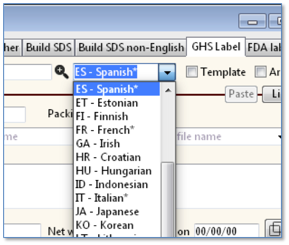
You select the language to be used for
label generation using the drop-down menu for language in the upper right
corner of the SDS entry form. If you plan to generate a bilingual
label, select the non-English language to be used.
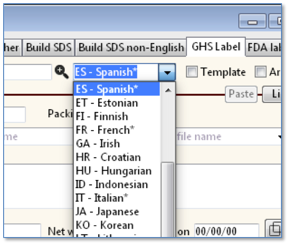
This menu is the same one that
governs the language to be used on the "Build SDS non-English"
tab, for generating an SDS in languages other than English. If you intend to
generate the GHS label in English, then if necessary, you should change the
language to "EN – English*".
Hazard items for non-English labels
If you have selected a language other than English for
label generation, the program will use hazard classifications, hazard (H-)
statements, and precautionary (P-) statements from the selected language, if
they are available. The languages that appear in the drop-down menu with an
asterisk (*) are most likely to have a complete set of hazard items. The order
in which the program obtains hazard items in the selected language is the same
as for generating an SDS in a language other than English:
1.
The contents of the "Description
(click translate**)" (non-English) column, in the hazard table.
2.
(For hazard classifications) internal
program look-up tables for the specified language.
3.
(For H-statements and P-statements) A selected
record in the Phrase translations section of the
program.
4.
The English-language statement
for the hazard, from the Hazard table in Tab "2 Hazards".
For a more complete discussion
of hazard items in non-English languages, refer to the "Background for
this section" item in the Help menu, when viewing the "Build SDS
non-English" tab.
Entry form features
UN number, Transport hazard class(es), Packing group, Proper shipping name (alphanumeric fields)
These editable fields also appear on Tab, "14.2
Transport (EU)". They repeat here because GHS labels typically
use them to identify the product; you can modify them without switching back
and forth to the other tab.
Depending on the selected label
format, some generated GHS labels can incorporate DOT-style shipping diamonds
as graphic elements. You can add up to three, one from each drop-down menu. The
menu items represent file names on disk, which are located in the "Resources/DOT
labels" folder. The specific path is:
~/SDScribe/Database/Resources/DOT_labels/
You can add your own graphics into this folder, as well. The
file names will appear in the three drop-down menus.
To avoid confusion, do not place these
graphic elements on the generated label next to the GHS pictograms. Avoid
making them the same size as the pictograms.
Lot, Net wt., Exp. on (two alphanumeric fields and one date field)
These fields can be used to provide information about
provenance: batch identification number, net weight of the product in the
container, and the expiration date. The batch number and net weight are
alphanumeric rather than numeric fields, so that you may use letters in the
batch number, and add units of measure after the net weight.
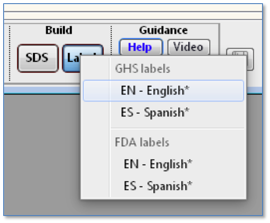
(Build) label (button)
Click on this button and then select English or the
non-English language, to generate the label in the word
processing area.
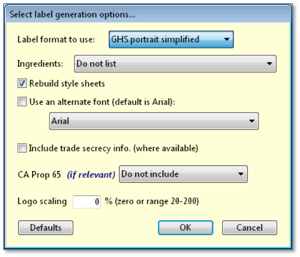
The program will present a dialog of options
("Select label generation options"). For more information on the
options in this dialog, refer to label generation options, below.
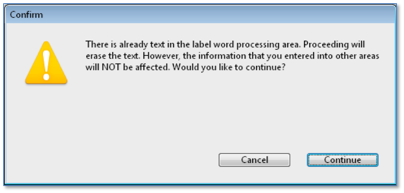
If text is already present in
the word processing area, then the program will ask you to confirm that you
wish to erase the existing text.
Copy picture (button with "duplicate" icon)
Use this button to place a copy of the first page
(only) of the generated label onto your computer's clipboard. You can
then paste it into another program for printing.
When you click on the button, the program will prompt you
to select a scaling factor (10-100 percent).
Selecting a scaling factor
other than 100 percent may produce disappointing (jaggy) results. It is best to
copy at 100 percent, and then scale in the destination program.
Other options for printing the generated label may
produce better results, and will print the entire label:
·
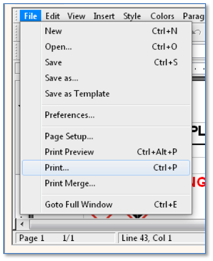
Print the label from the word
processing menus ("File -> Print...").
·
Print the label from the word
processing menus ("File -> Print...") to a
PDF file on disk. For this option, you must have a PDF print driver
installed on your computer.
·
Save the label to disk as a Microsoft®
Word file, and then print from Word. However, some loss
of graphic detail may take place when reopening the GHS label in Word.
Word processing area
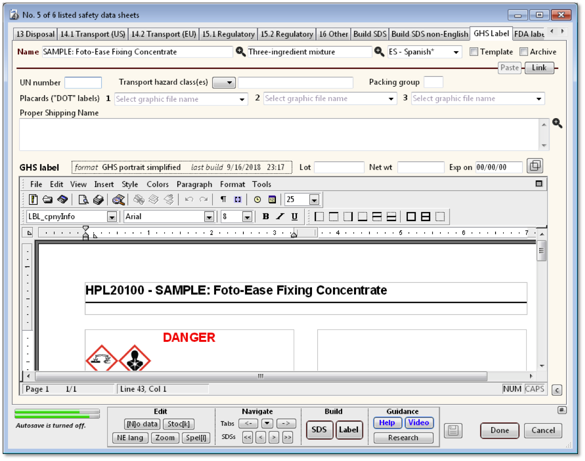
The word processing area occupies the
middle of the entry form. It is essentially the same as the word processing
areas on the Build SDS and Build SDS non-English
tabs, except that it holds the generated GHS label instead of a generated SDS.
The word processing area is fully editable: you can move text, change fonts,
add spaces, underlining, italics, etc., as desired.
To avoid user confusion
between GHS pictograms and DOT-style hazard symbols, they should not be placed
immediately adjacent to each other on the label, and should be in different
sizes.
For convenience, you can view and/or edit the label in a
larger window. Click on the small "zoom" box in the
upper-right corner of the word processing area, just below the Guide
button on the form. In the larger window, click on the zoom button again to
return to the normal view.
You can use the word processor area menu bar (File, Edit,
View, Insert, Style, Colors, etc.) to perform a variety of functions. To print
the label, select "File
-> Print" from the menus.
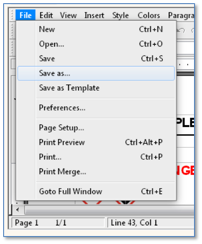
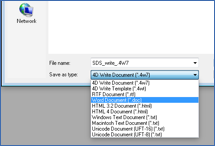
To save the label as a separate document on disk, select "File -> Save As", and
the program will present a dialog ("4D
Write Export:") to select the
location and format. Among others, the supported formats include Microsoft®
Word, Rich Text, HTML, and plain text.
If you have a PDF print driver installed on your
computer, you can also save the generated label on disk in PDF format
by selecting File -> Print…
Label generation options
As noted above, when you click on the Build label
button, the program presents a dialog of options:
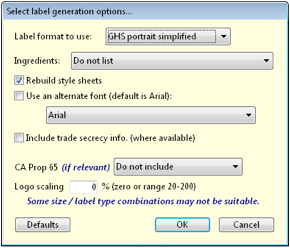
"Select label generation options" dialog.
Label format to use
Specifies the GHS label configuration
that you would like to generate. At present there are five in
the program. The number of sheets required for each label will depend on
various factors, including the number of hazard (H-) and precautionary (P-)
statements and their length.
Bulleted descriptions below indicate the order of
appearance of the printed items on the label.
If you don't see an expected
element
in the generated label, check the associated field or table listing elsewhere
on the SDS entry form, to verify that it has contents. If the element should appear
in a header or in the footer, and the header or footer is invisible, try
generating another label format (e.g., landscape instead of portrait, or
vise-versa), and then re-generate the desired label.
GHS portrait
·
Format: 8.5 x 11-inch, portrait, single column
·
The chemical name or (if empty)
the product name, in inverse text (white text on a black
background)
·
Other identifiers (where
present): CAS number, EC number, UN shipping number, chemical formula, and HMIRA
registration number (Canada)
·
Signal word (in red)
·
Pictograms
·
Hazard (H-) statements, listed
in order of their appearance in the Hazard table (Tab "2 Hazards")
·
Precautionary (P-) statements, grouped
into 200, 400, and 500 series categories and then listed within groups in order
of appearance in the Hazard table (Tab "2 Hazards"). The 300-series P-statements
appear below the others, beneath a "FIRST AID" title
·
Other hazards, where present in
the "Other hazards (not otherwise classified)"
field, below the Hazard table on Tab "2 Hazards"
·
A statement of percentage(s) for ingredients of unknown
acute toxicity, if the statement is present on Tab "2
Hazards".
·
HMIRA registration number,
where present, on Tab "1 Identification". You must also check the
box: "Include trade secrecy info. (where
available)" on the label
generation options dialog.
·
The field, "Trade secret statement,
if a specific chemical identity or exact percentage has been withheld",
from Tab "3 Composition". You must also check the box: "
Include trade secrecy info. (where available)"
on the label generation options dialog.
·
The HMIS color bars and the NFPA
diamond, if any ratings are present for them on Tab "15.2
Regulatory". The HMIS title block uses the chemical name
or (if empty) the product name.
·
Product ingredients,
if selected in the label generation options
dialog
·
CA Prop. 65 warning, if
selected in the label generation options
dialog
·
Horizontal line
·
The supplier logo from Tab
"1 Identification" or (if none) the company logo
from Preferences
·
The supplier name, address and
telephone number from Tab "1 Identification"
·
Where available, the product lot number,
weight, and expiration date
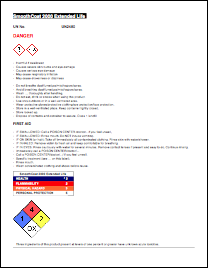
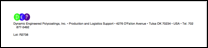
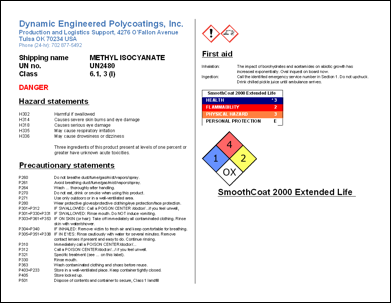
"GHS Portrait" label format.
GHS portrait simplified
·
Format: 8.5 x 11-inch, portrait, two columns.
·
The product name or (if empty)
the chemical name, left justified in the header. For longer
labels, the name will appear on subsequent pages as well.
·
Signal word (in red)
·
Pictograms
·
Hazard (H-) statements, listed
in order of their appearance in the Hazard table (Tab "2 Hazards")
·
Precautionary (P-) statements,
grouped by category (100, 200, 300, 400, 500 series) and then listed within
category by order of appearance in the Hazard table (Tab "2 Hazards")
·
Horizontal line
·
Other hazards (where present in
the "Other hazards (not otherwise classified)"
field, below the hazard table on Tab "2 Hazards".
·
A statement of percentage(s) for ingredients of unknown
acute toxicity, if the statement is present on Tab "2
Hazards".
·
HMIRA registration number,
where present on Tab "1 Identification". You must also check the box:
"Trade secrecy" on the label generation options dialog.
·
Trade secrecy statement: the
field, "Trade secret statement, if a specific chemical identity or
exact percentage has been withheld", from Tab "3
Composition". You must also check the box: "Include trade
secrecy info. (where available)" on the label generation options dialog.
·
Product ingredients,
if selected in the label generation options
dialog
·
CA Prop. 65 warning, if
selected in the label generation options
dialog
·
Horizontal line
·
The supplier logo from Tab
"1 Identification" or (if none) the company logo
from Preferences
·
The supplier name, address and
telephone number from Tab "1 Identification"
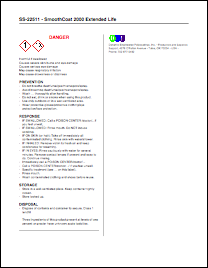
"GHS portrait simplified" label format.
GHS-DOT landscape
·
Format: 8.5 x 11-inch, landscape, two columns
·
Supplier name, address, and
telephone number
·
UN shipping name, transport
number, transport hazard class(es),
and packing group.
·
Signal word (red)
·
Hazard (H-) statements, each
with prefixing code, listed in order of their appearance in the Hazard table
(Tab "2 hazards").
·
Precautionary (P-) statements,
each with prefixing code, listed in order of their appearance in the Hazard
table (Tab "2 hazards").
·
Pictograms
·
Where available on Tabs "4.1 First
aid" and "4.2 First aid", text in the fields
o In
case of skin contact
o In
case of eye contact
o If
inhaled
o If
swallowed
·
The HMIS color bars and the NFPA
diamond, if ratings are present for these items on Tab "15.2
Regulatory". The HMIS title block
uses the chemical name or (if empty) the product name.
·
Other hazards (where present in
the "Other hazards (not otherwise classified)"
field, below the Hazard table on Tab "2 Hazards"
·
A statement of percentage(s) for ingredients of unknown
acute toxicity, where the statement is present on Tab "2
Hazards"
·
HMIRA registration number,
where present, on Tab "1 Identification". You must also check the
box: " Include trade secrecy info. (where
available)" on the label
generation options dialog.
·
Trade secrecy statement: the
field, "Trade secret statement, if a specific chemical identity or
exact percentage has been withheld", from Tab 3 (Composition).
You must also check the box: "Include trade secrecy info. (where available)" on the label generation options dialog.
·
Product ingredients,
if selected in the label generation options
dialog
·
CA Prop. 65 warning, if
selected in the label generation options
dialog
·
The product name
·
Up to three DOT–style, diamond-shaped (or
custom) graphic elements, from the "Shipping labels"
(1, 2, 3) drop-down menus
·
The supplier logo from Tab
"1 Identification" or (if none) the company logo
from Preferences
· When
available, product lot number, weight, and expiration
date
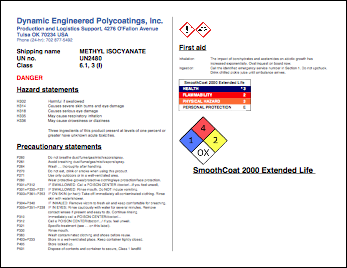
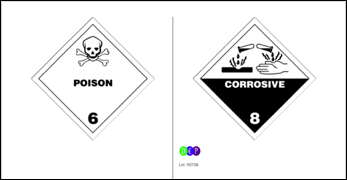
"GHS-DOT landscape" label format.
GHS-DOT portrait
·
Format: 8.5 x 11-inch, portrait, two columns
·
The supplier logo from
Tab "1 Identification" or (if none) the company logo
from Preferences
·
Product number
·
Product name or (if absent) chemical
name
·
Lot number
·
Supplier name, address, and
telephone number
·
UN transportation number
·
Signal word (red)
·
Pictograms
·
(The content begins again in the second
column, even if space remains in the first column.)
·
Hazard (H-) statements, listed
in order of their appearance in the Hazard table (Tab "2 Hazards")
·
Precautionary (P-) statements,
listed in order of their appearance in the Hazard table (Tab "2
Hazards"), except that the 300-series P-statements appear separately under
a "FIRST AID" title.
·
The HMIS color bars and
the NFPA diamond, if any ratings are present for them on Tab "15.2
Regulatory". The title block uses the chemical name or
(if empty) the product name.
·
Up to three DOT–style, diamond-shaped
(or custom) graphic elements, from the "Shipping labels"
(1, 2, 3) drop-down menus
·
Other hazards (where present in
the "Other hazards (not otherwise classified)"
field, below the Hazard table on Tab "2 Hazards".
·
A statement of percentage(s) for ingredients of unknown
acute toxicity, where the statement is present on Tab "2
Hazards"
·
HMIRA registration number,
where present, on Tab "1 Identification". You must also check the
box: "Include trade secrecy info. (where
available)" on the label
generation options dialog.
·
Trade secrecy statement: the
field, "Trade secret statement, if a specific chemical identity or
exact percentage has been withheld", from Tab 3 (Composition).
You must also check the box: "Include trade secrecy info. (where available)" on the label generation options dialog.
·
Product ingredients,
if selected in the label generation options
dialog
·
CA Prop. 65 warning, if
selected in the label generation options
dialog
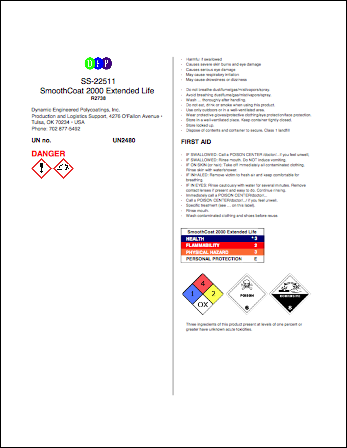
"GHS-DOT Portrait" label format.
Bilingual
·
Format: 8.5 x 11-inch, portrait, two columns,
left column English and right column non-English
o
You must select a non-English language
in the language drop-down menu, upper right on the SDS entry form.
o
After the program generates the label, if the
pictograms are cut off in the header, try
§
Using a narrower alternate
font. For example, select "Arial Narrow" on the label generation options dialog, and then re-generate
the label.
§
Clicking into the text for the product
number/name, and changing the style sheet from "boldCtr_24pt" to
something smaller (for example, you could change it to "boldCtr_16pt").
o
After the program generates the label, if the supplier
name is cut off in the footer, try reducing the logo
size in the label generation dialog, and re-generate the label.
·
Product number (hyphen) and product
name or (if absent) chemical name
· Pictograms,
automatically adjusted for size depending upon how many are present
· Matching
items in left and right columns, with the right
column in the non-English language:
o
Signal word (red)
o
Hazard (H-) statements, listed
in order of their appearance in the Hazard table (Tab "2 Hazards")
o
Precautionary (P-) statements, grouped
by category (100, 200, 300, 400, 500 series) and then listed within each category
by order of appearance in the Hazard table (Tab "2 Hazards").
o
Other hazards (where present in
the "Other hazards (not otherwise classified)"
field, below the Hazard table on Tab "2 Hazards".
o
A statement of percentage(s) for ingredients of unknown
acute toxicity, where the statement is present on Tab "2
Hazards"
o
HMIRA registration number,
where present, on Tab "1 Identification". You must also check the
box: "Include trade secrecy info. (where
available)" on the label
generation options dialog.
o
Trade secrecy statement: the
field, "Trade secret statement, if a specific chemical identity or
exact percentage has been withheld", from Tab 3 (Composition).
You must also check the box: "Include trade secrecy info. (where available)" on the label generation options dialog.
o
Product ingredients,
if selected in the label generation options
dialog
o
CA Prop. 65 warning, if
selected in the label generation options
dialog
·
The supplier logo from Tab
"1 Identification" or (if none) the company logo
from Preferences
· Supplier
name, address, and telephone number
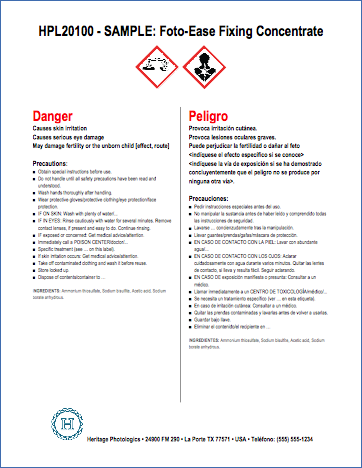
"Bilingual" label format.
Ingredients
Indicate whether and how you would like to include
ingredients (SDS components) on the label. The menu options allow you to
exclude components for which you are making a claim of trade
secrecy/confidential business information.
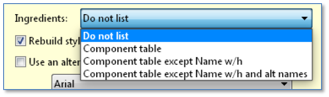
Ingredient options, "Select label generation
options" dialog.
Rebuild style sheets (advanced
topic)
When the Rebuild style sheets box is
checked, the program automatically re-creates all style sheets
used in the GHS label according to your selection of a font.
The SDScribe™ word processing
area makes use of style sheets that are similar to those used
in a standalone word processing program, like Microsoft® Word. After
you generate the label, the name of each style sheet appears just above the
ruler in the word processing area, in a drop-down menu. When you click into the
text, the drop-down menu will display the style sheet for the text where the
cursor is located.
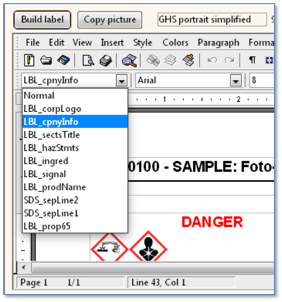
Style menu, word processing area.
You can take advantage of this feature to manually
customize the style of the generated label. From the word processing
area menu bar, select "Format
-> Style sheets…" and click on the name of the style you
wish to edit. Then click on the Edit button.
However, these manual style sheet customizations in the
word processing area apply only to the label that you are
generating in the current SDS record. If you subsequently open another
SDS record, the customizations you made to style sheets for the previous label
(for a different SDS record) won't be available.
For this reason, it is best to keep the Rebuild
style sheets box checked, and use the "Select
label generation options" dialog to make a font selection. As long as you
save the SDS record after generating the label, the program will
"remember" your selections in the dialog for the next time you
generate a label (for any SDS record).
In the "Select label generation options"
dialog, if you change the font type, the program will automatically
check the "Rebuild style sheets" box. If
you then un-check the "Rebuild style sheets"
box, then the program won't be able to implement the changes you selected.
Use an alternate font (default is Arial)
Selecting a font from the drop-down menu causes the label
style sheets to incorporate the new font, rather than defaulting to Arial. With
this option, the style sheets will always be rebuilt.
An alternate font may provide a look that is more suited
to your company image. Some fonts may require more space in larger sizes (for
example, in document titles). After label generation, if a product title in the
header area is truncated or overruns the header area, then you may need to
adjust the header margins.
Include trade secrecy info. (where available)
Check this box when you want the label to include your
HMIRA registration number and your trade secrecy statement (if either are
available).
CA Prop 65 (if relevant)
This setting places a California Proposition 65
("Prop. 65") warning on the label. The label
follows the "safe harbor" language that the state adopted in 2016 and
implemented in 2018.
The program checks the linked Substance record for each
of the product components, to determine whether one or more of them have a
Prop. 65 listing with no delisting date.
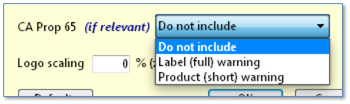
Prop. 65 warning options.
There are two options offered for the warning, "Label
(full) warning" and "Product (short) warning".
Label (full) warning
This option includes both the chemical name(s)
of the component(s) and the type of hazard they pose ("cancer"
and/or "birth defects or other reproductive harm"). The program will
look for a synonym of the type "Prop. 65 name" to incorporate into the warning.
If you have selected a non-English language on the entry form
(top right on the form), the program will also look for a synonym in that
language.
If the program cannot find a non-English Prop. 65 name, it will substitute the English Prop. 65 name. If it cannot find the English Prop.
65 name, it will substitute another synonym.
When chemical name substitutions are necessary (i.e.,
there is no "Prop. 65 name"-type synonym in the Substance record),
then the program will embed an alert. An example of such an alert is:
[**alt
name used; may not be Prop. 65 name**]
The presence of a bracketed alert such as this one is
your signal that further investigation is warranted; you will need to adjust
the wording of the Prop. 65 warning before using the label
with the product.
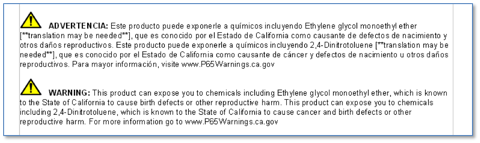
Sample of a Prop. 65 "full" warning in
Spanish and English, identifying two Prop. 65-listed
components of a product. Note the presence of the bracketed alerts,
"[**translation may be needed**], which indicate that the chemical names
used in the Spanish portion should be verified. Delete the bracketed alerts
once you have verified the chemical names.
Product (short) warning
The product warning does not include the name(s)
of the components, and is significantly shorter than the "Label (full)
warning" option.
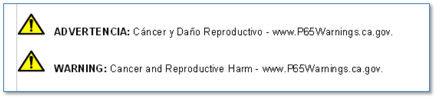
Sample of a Prop. 65 "short" warning in
Spanish and English, for Prop. 65-listed components of a
product (which the label does not identify by name).
Disclaimer
Because of the legal issues surrounding Prop. 65
notifications, the program always inserts a disclaimer onto the label for you
to read. You should remove the disclaimer from the label before placing the
label onto your product.

Disclaimer that the program inserts after a Prop. 65
warning. Read the disclaimer and then delete before placing the label onto your
product.
Logo scaling
Use this setting to scale the logo (from Tab "1
Identification") between 20 and 200 percent of its normal size.
Values of zero or 100 result in no scaling.
[rev. 6.9.2020]