Managing help
·
If
this help window opened automatically when you started the program, then you
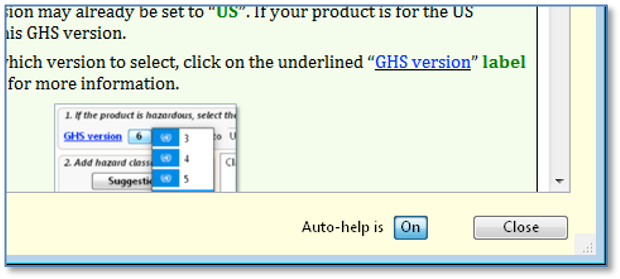
have automatic help turned on. To change automatic help,
click on the “Auto-help is” on/off pushbutton, on this window.
·
When
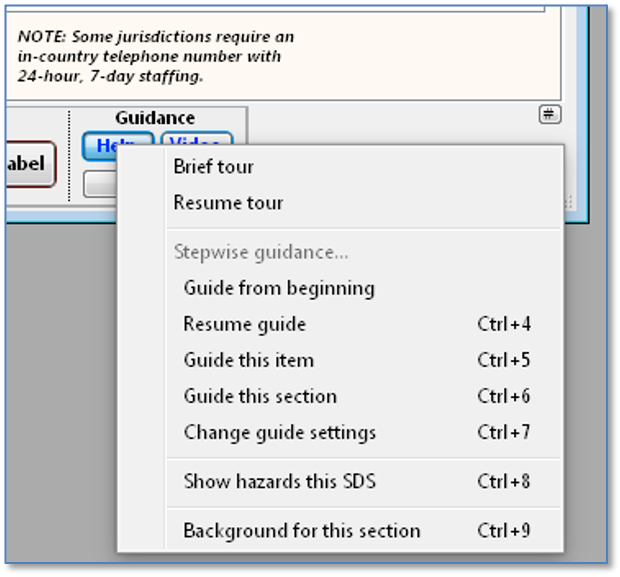
automatic help is off, you can display or refresh this help window manually, by using the [Ctrl]-9
shortcut (“Background for this section”).
·
To
get an overview:
o
Take
the Brief tour on how the SDS entry form works:
§ Entering SDS content
§ Navigating the form
§ Shortcuts and convenience
features
§ Translation features
§ Generating the SDS and GHS
labels
To start the tour, click on the Help
button and select “Brief tour”.
o
Watch
the video
on this tab (click on the Video button, if the label is in blue
text).
o
Navigate
to Tab "1 Identification" and view or refresh the
background help. Read the section, “Features
common to most SDS form sections/tabs”.
·
For
brief tips, hover with your mouse over the object of interest.
·
To
get assistance on a particular field: Click into the field, then click
on the Help button, and select “Guide this item” (shortcut: [Ctrl]-5).
·
To
get stepwise assistance for all areas on this tab: Click on the Help
button and select “Guide this section”
(shortcut: [Ctrl]-6).
·
To
learn additional details and requirements, read the details
section,
immediately below.
|
Build
SDS non-English (tab) — details
Word
processing area
(Build) SDS (button
with menu)
SDS generation options (dialog)
Tab 1 — Main and sections
Main selection
SDS format to use
Don't print subsection numbers
Minimum indent
Options for specific SDS Sections
Section 2 – Hazard identification
Hazard pictograms Size ___ points (30-200)
Show GHS pictogram names
Hazard classification listings
Do not include chapters or citations in the
description
Adjust to the GHS revision of the SDS, if possible
Hazard (H-) statements without H-codes
Paragraph-style precautionary (P-) statements
Section 3 – Composition/information on ingredients
Compact
CAS column
(Omit:) Cmpnt synonyms
(Omit:) Index nbrs
(Omit:) EC nbrs
Include English ingredient names on a non-English SDS
Section 8 – Exposure controls/personal protection
Group exposure information by CAS number
Substitute for chemical names claimed as trade
secrets. (Also applies to Sects. 11, 12, 15.)
Section 9 – Physical-chemical properties
Property order
Use Canadian subtitles (“UN” SDS fmt. only)
Section 15 – Regulatory information
Include NFPA and HMIS ratings as text only (no
symbols)
Merge separate listings for the same regulation
Tab 2 — Style options
Rebuild style sheets (advanced topic)
Font options
Use an alternate font (default is Arial)
Reduce standard font sizes by ___ points
Case correction (English SDSs only)
Section header options
Use colors
Border rectangle ___ pts.
Additional spacing ___ (~0.063 or higher to add space)
Page header options
Header style
Compact
Standard
Std no cmpny name 1
Std no cmpny name 2
Carriage return after logo (“Standard” hdr. p.1 only,
places company on a separate line)
SDS serial no., version, and issue date in header
(also removes from footers)
Company logo
Logo scaling ___ percent (zero for actual size, or
range 20-200)
This tab enables you to generate
(produce) a non-English-language SDS, based upon the content from the previous
entry form tabs. The SDS will appear in a word processing area,
where you can further customize or edit the contents. When you save the SDS
record by clicking on the Interim save (disk icon) button or
the Done button, the program will also save the generated SDS,
as part of the record. Additionally, you can save the generated SDS as a
separate document on disk.
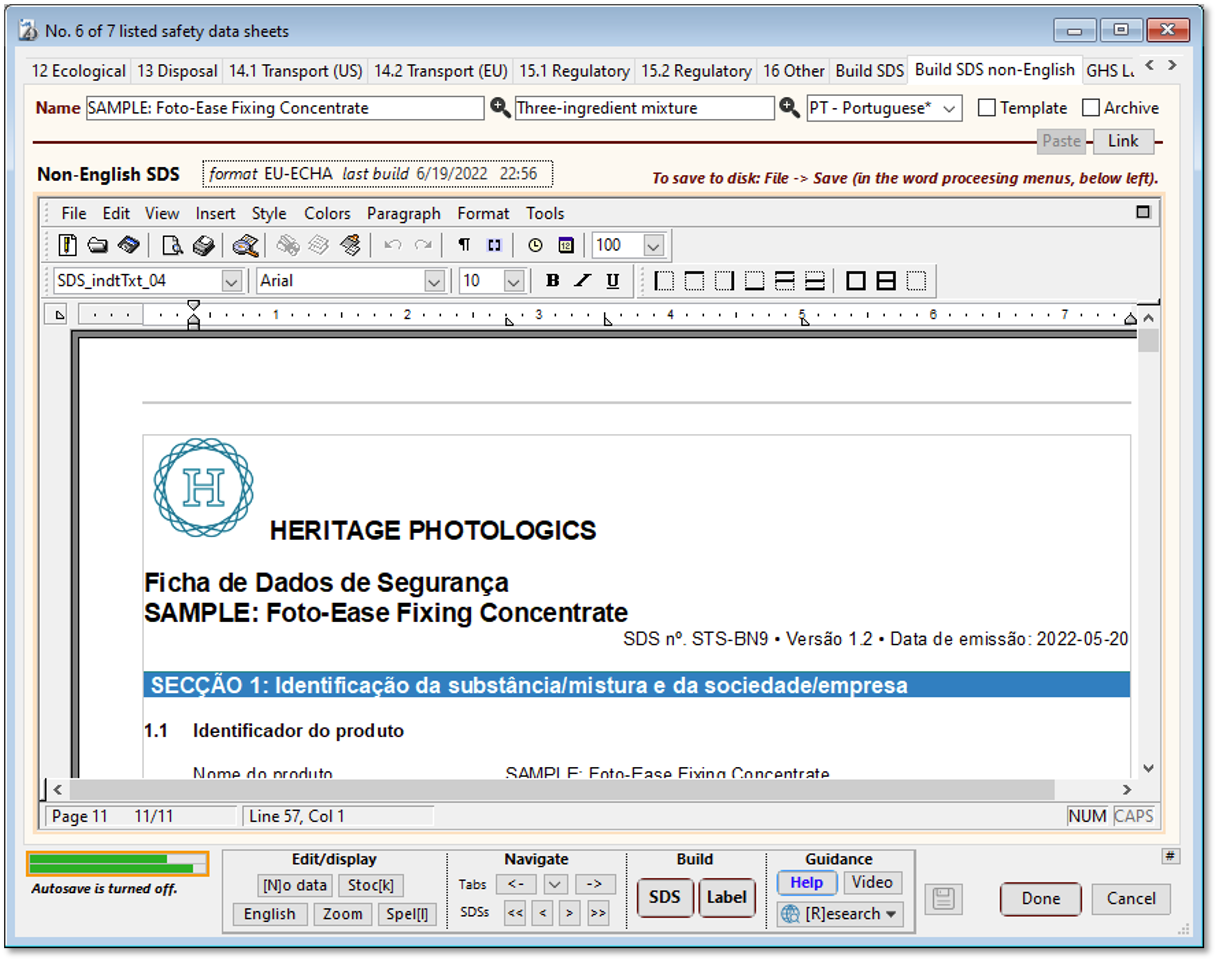
Word processing area, "Build SDS non-English" tab.
The word processing area occupies most
of the space on this page. The generated SDS in this area is a fully editable
document. You can move text, change fonts, add spaces, underlining, italics,
etc., as desired. Because the "Build" capability in SDScribe™ makes use of style sheets, you
can further customize the look of the generated document in a consistent way,
by editing one or more style sheets rather than directly editing the text in
the document. The name of each style sheet appears just above the ruler, when
you click into an area of the SDS.
For convenience, you can view and/or edit the SDS in a
larger window. Click on the small "zoom" box in the
upper-right corner of the word processing area. In the larger window, click on
the zoom button again to return to the normal view.
The word processor area has its own menu bar, with menus
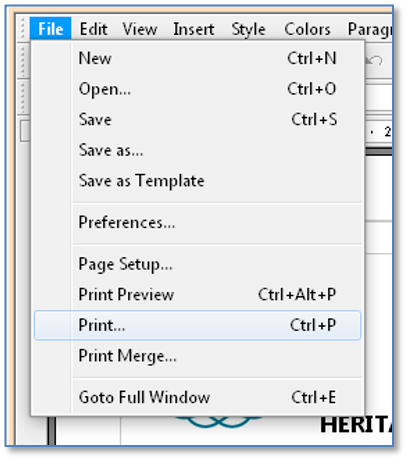
to perform a variety of functions ("File", "Edit", "View", "Insert", "Style", "Colors", etc.). To print the SDS, select "File -> Print" from the
menu bar.
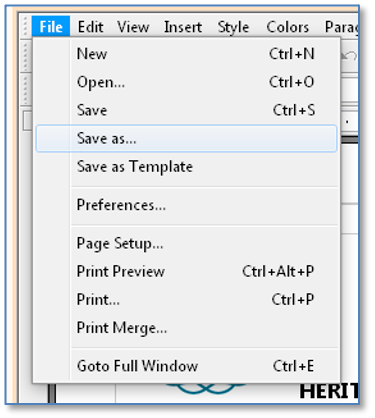
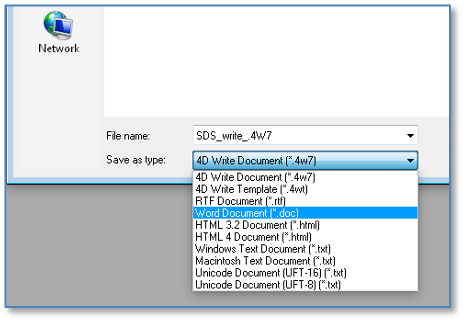
To save the SDS as a separate document on disk, select "File -> Save As", and
the program will present a dialog ("4D Write Export:")
to select the location and format. Among others, the supported formats include
Microsoft® Word (".doc"), Rich Text (".rtf"),
HTML, and plain text. This feature allows you to edit the SDS in your word
processor, if you prefer to work that way.
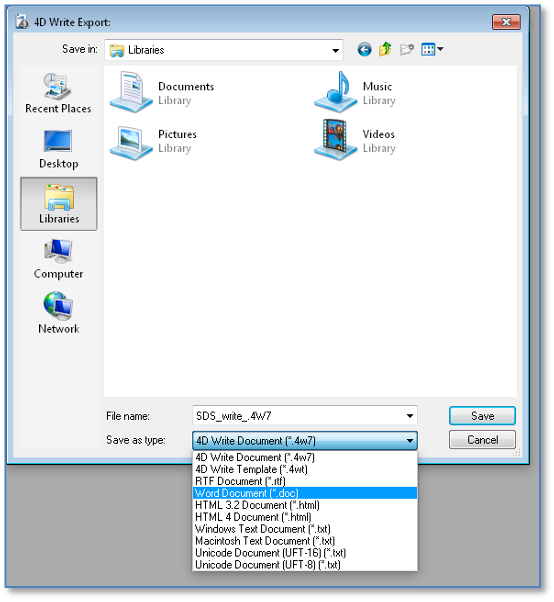
Saving an SDS to disk.
The pictograms on the SDS may look better on paper when directly
printed from within the program's word processing area. The reason is
that the bitmapped graphics may pass through additional conversion steps for a
different format, causing the images to appear somewhat fuzzy or blurred.
If you have a PDF print driver installed on your
computer, you can also save the generated SDS on disk in PDF format by selecting
"File -> Print…"
(Build) SDS (button with menu)
Use this button to start the process of generating the
SDS document. The program will:
·
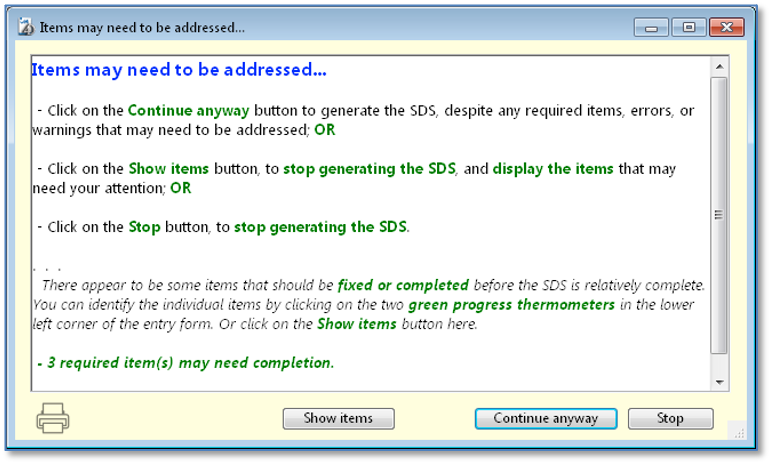
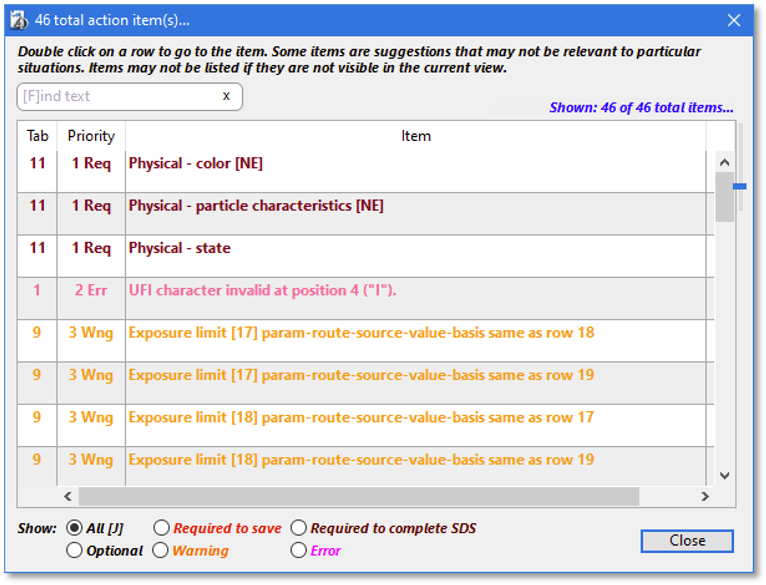
Perform a completeness check on
the SDS information you have already entered;
·
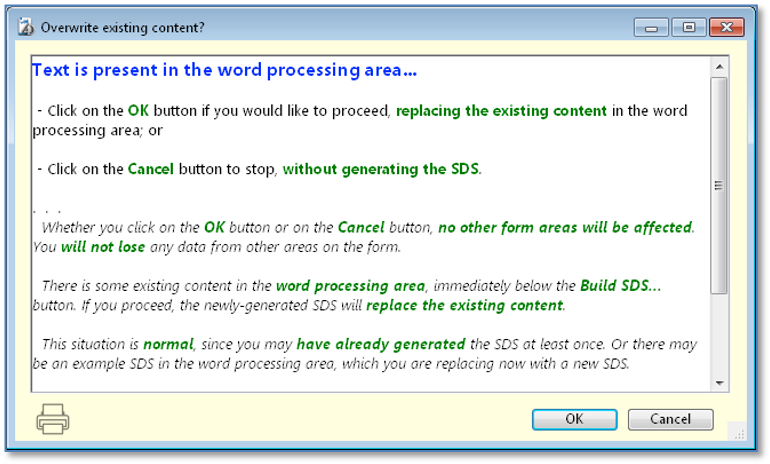
Confirm that you wish to overwrite
existing content in the word processing area (if any);
·
Present a dialog of SDS generation
options, so that you can customize the SDS for certain content and
style options; and
·
Generate the SDS in the word
processing area.
(A stepwise discussion of
these actions appears in the "Quick start"
section, at the top.)
SDS generation options (dialog)
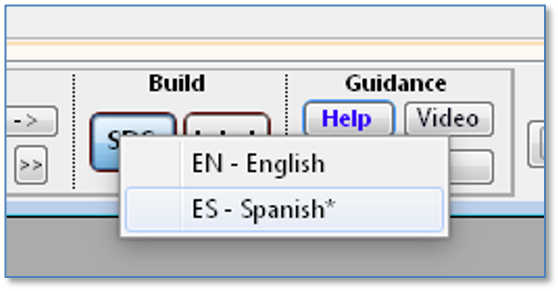
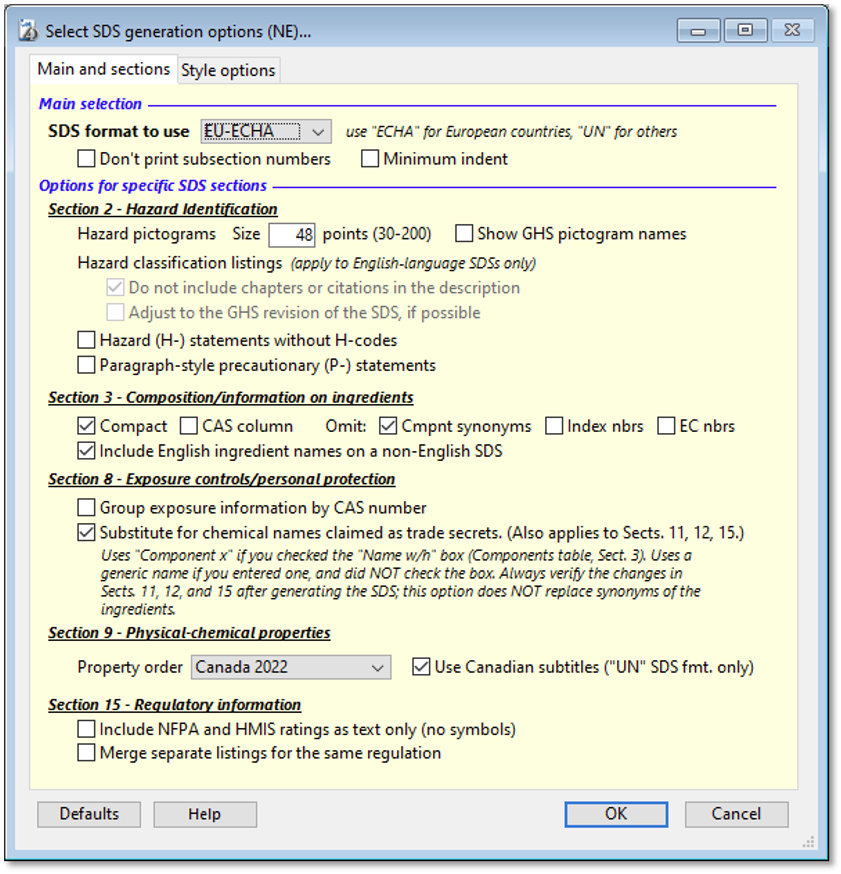
After you have clicked on the (Build) SDS button
and selected the non-English language, but prior to SDS generation, the program
will display a "Select SDS generation options..."
dialog, prompting you to select an SDS format to use. You can select additional
options/customizations as well. The discussion that follows presents these
settings.
If you saved the SDS record after you last generated an
SDS (for any product), the program should have remembered the settings you selected.
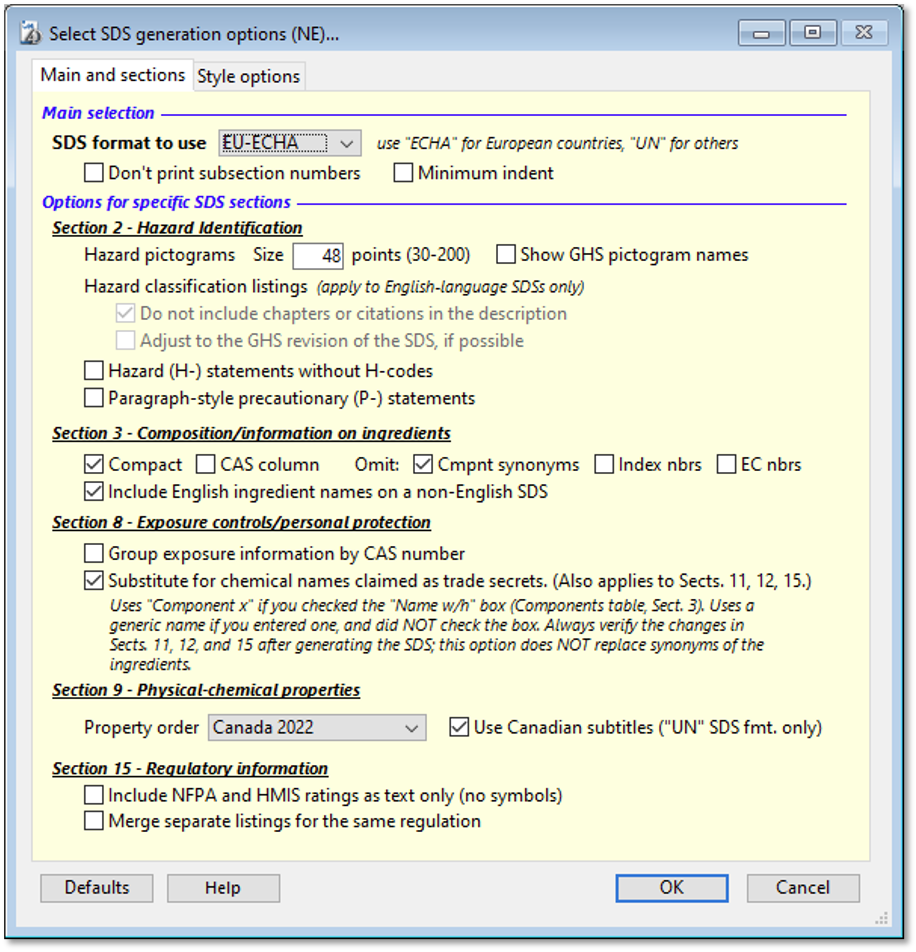
SDS generation options dialog, "Main and sections" (first) tab.
The program presently supports two SDS formats: UN
and EU-ECHA.
The EU-ECHA format is most relevant to member states of
the European Union and European Economic Area (EU/EEA), as well as to Great
Britain. It includes additional subsections and reflects the more extensive
requirements of the EU regulations. The EU-ECHA format also appends the
relevant hazard (H-) statement codes to each GHS hazard classification listed
for the product (SDS Section 2).
The UN format is somewhat simpler, and is applicable to a
wider range of countries.
The SDS consists of sixteen main sections,
with the UN specifying the text and numbering for the main section titles.
Specifications for the information contained within each section are more
content-based than format-based, however. You have some leeway in how you
display the necessary content.
This program default is to include subsection
numbers in decimal format. For example, SECTION 1:
Identification in the UN format includes subsection titles starting
with:
1.1 Product identifier
1.2 Other means of identification
(etc.)
If you do not want the subsection titles
to have prefixing numbers, then check the "Don't print subsection
numbers" box.
Some regulatory authorities, including the European
Chemicals Agency (ECHA),
require specific subsection titles that include the numbers. If you are
preparing an SDS for a regulatory authority other than US-OSHA, then you should
determine whether subsection numbering is needed.
When this box is not checked the program
indents both the subsection titles and the textual content of the subsections
by 0.4 inches (about 1 cm) from the left margin. The subsection numbers will
appear at the left margin.
To reduce the indentation from 0.4 inches to 0.1 inches,
check the "Minimum indent" box.
NOTE: The "Minimum
indent" option requires the "Don't print subsection
numbers" option. Thus, for SDSs destined for EU/EEA jurisdictions,
you should not check this box.
This setting specifies the size of the pictograms
that appear in Section 2 (Hazard identification) of the generated SDS.
The program by default uses a value of 48 points.
Regulatory agencies typically have either size or visibility requirements for
pictograms on labels, but generally not on the SDS. However, Australia
specifies a pictogram size on the SDS of between 1 x 1 cm and 2 x 2 cm.
Checking this box places the descriptions of the
pictograms beneath the pictogram graphics, in the generated SDS. The
descriptions may be required by some countries' regulatory authorities.
This option applies only to English-language SDSs. For
details, refer to the background help on Tab "Build SDS".
This option applies only to English-language SDSs. For
details, refer to the background help on Tab "Build SDS".
List the hazard statements without using including the
H-code as a prefix. With or without this option, each hazard statement appears
on a separate line.
This option places the precautionary statements in
paragraph format, without the associated P-codes as prefixes to each one.
Without this option, each P-statement appears on a separate line, with the
associated P-code as a prefix.
Checking this box will cause some of the contents of the Component
table on Tab "3 Composition" to appear
inside a rectangular area similar to a table, rather than as paragraph text.
The option also omits component synonyms, if any. In compact format, Section 3
generally requires less space, particularly if there are many ingredients.
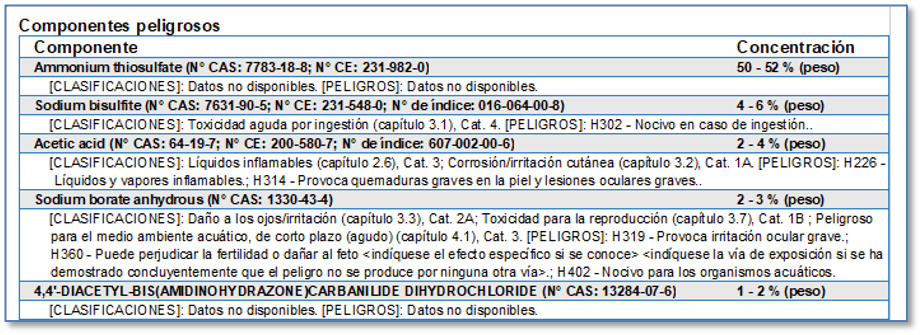
Compact format option, Section 3.
This option requires the "Omit: Cmpnt synonyms" box to be checked as well.
Normally the compact format has two “columns”, one for
component name and the other for concentration. This option inserts an
additional column for CAS number, between the two. When this box is not
checked and a CAS number exists for the chemical, the CAS number instead
appears immediately after the component name.
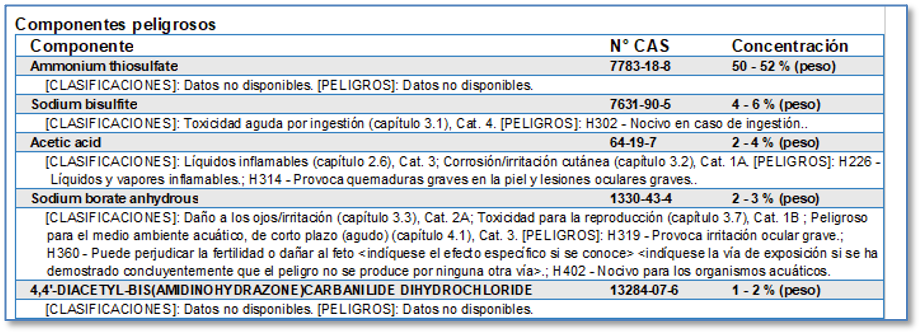
Compact format with CAS column option, Section 3. Also selected are the options
that omit index and EC numbers, which would otherwise appear immediately after
the component name.
(Omit:) Cmpnt synonyms
When this box is not checked, the
program will print the synonyms that appear for each ingredient in the
components table on Tab "3 Composition" ("Common
name (1st); synonym(s)" column). Depending upon how many
ingredients the product contains, the synonyms may require a significant amount
of additional space, making the overall SDS a much longer document.
To remove the ingredient synonyms from the SDS, check
this box.
This option omits the index numbers that appear in the
first column of the table of harmonised entries, in Annex VI
of the EU CLP regulation. When this box is not checked and
an index number is available for the chemical, it appears immediately after the
component name.
This option omits the European Commission (EC) number for
the chemical. When this box is not checked and an EC number
exists for the chemical, it appears immediately after the component name.
Some countries may require that a non-English SDS also
include the English-language names of ingredients (China is currently one
example). Having accessible English names may be particularly useful where the
official language does not use the Latin alphabet.
When the box is checked, the program groups
exposure-related parameters by the CAS number of the chemical,
and does not include any information from the "Basis/monitoring
notes" column of the Exposure table (Tab "8.1
Exposure-protection").
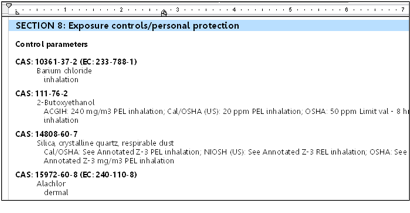
Group exposure information by CAS number, Section 8.
When the box is not checked, the program
lists each exposure parameter individually, and in the order
of appearance of the items in the exposure table.
In the Component table on Tab "3
Composition" of the entry form, if you have checked the "Name
w/h" column for any of the components, then program will use a placeholder
name in Section 3 of the generated SDS, like "Component 1 (trade
secret)", instead of the real ingredient name. This substitution
also occurs in:
·
SDS Section 8 (data from Tab "8.1 Exposure-protection"),
if the name-withheld ingredient appears in the Exposure table;
·
SDS Section 11 (data from Tabs "11.1
Toxicological", "11.2 Toxicological",
and "11.3 Toxicological") where the real name
appears in any of the toxicity paragraphs;
·
Section 12 (data from Tab "12 Ecological")
if the real name appears in any of the ecotoxicity paragraphs.
·
Section 15: data from Tabs “15.1
Regulatory” (Regulations table) and “15.2 Regulatory”
(“Chemical Safety Assessment” field).
If you have not checked the "Name
w/h" column for a particular ingredient in the Component table,
but you have instead entered a name into the "Alternative/generic
name" column, then the program will substitute that name for the
real ingredient name.
In the case of SDS Sections 11, 12, and 15, the
substitutions will not occur if there are differences in
spelling, punctuation, or abbreviations, no matter how minor;
nor does it recognize synonyms for the real ingredient names.
As an example, if you checked “Name w/h” for a component named
“Sodium borate anhydrous” in the Component table, and the same component
appears in the Regulations table as “Boron sodium oxide (B4Na2O7)”, the
substitution will not occur.
Because of these limitations, after you generate the SDS,
you should carefully proofread these sections to verify the
changes.
Use this drop-down menu to select the order of appearance
for individual physical-chemical properties in Section 9.

UN standard (default order)
Select this option to present the required
physical-chemical properties in the order of their appearance in UN GHS
rev. 7.
Properties from earlier GHS revisions that are no longer
required will still appear near their previous locations, provided that their
corresponding fields are not empty. For example, the Odor threshold
property (no longer required as a separate item) will appear following the Odor
property, if you have entered content into the Odor threshold field.
US-OSHA 2012
Select this option to present the physical-chemical
properties in the order of their appearance in US-OSHA 2012 regulations (29
CFR §1910.1200 Appendix D). The properties added in GHS rev. 7
and in subsequent revisions will then appear after the last of
the OSHA 2012 properties, provided that their respective fields are not empty.
Canada 2022
This option is essentially the same as the “UN standard”
option, except that the earlier properties that are no longer required will
appear after the GHS rev. 7-required properties, if the
respective fields are not empty.
Check this box if you wish to use the Canadian WHMIS or
WHMIS 2022 names for each physical-chemical property. The Canadian property
names in some cases differ slightly from the UN or US-OSHA names.
The Canadian subtitles option does not
apply to the EU-ECHA SDS format, which has more specific
titling/labeling requirements. In this format, the program ignores the check
mark.
When the Use Canadian subtitles box is not
checked,
·
The UN standard property order
uses UN property names. For example, the UN description “Odor” replaces
the Canadian description “Odour”.
·
The US-OSHA 2012 property order
uses US-OSHA property names as they appear in Appendix D.
·
The Canada 2022 property order
uses UN property names.
If you have entered values into the NFPA
triangle or the HMIS color rectangle on Tab "15.2
Regulatory", then the program normally prints the NFPA triangle
and/or the HMIS rectangle as graphic images on the generated SDS.
If you would like the NFPA and HMIS information to appear
on the generated SDS as text only (with no triangle or colored
rectangle graphics), then check this box.
Tab "15.1 Regulatory" includes
the Regulations table, containing rules, regulations and
chemical "Right-to-Know" lists that may be relevant to the product.
When this box is checked, the program will combine
multiple listings for the same regulation on the
generated SDS. For example, more than one ingredient might be included on the
"Massachusetts Right-to-Know Components" list; with this option, they
would appear together on the SDS, in alphabetical order.
NOTE: The Merge if same button on Tab "15.1
Regulatory" performs a similar function, except that it updates the regulatory records
permanently. This option makes no changes to the records.
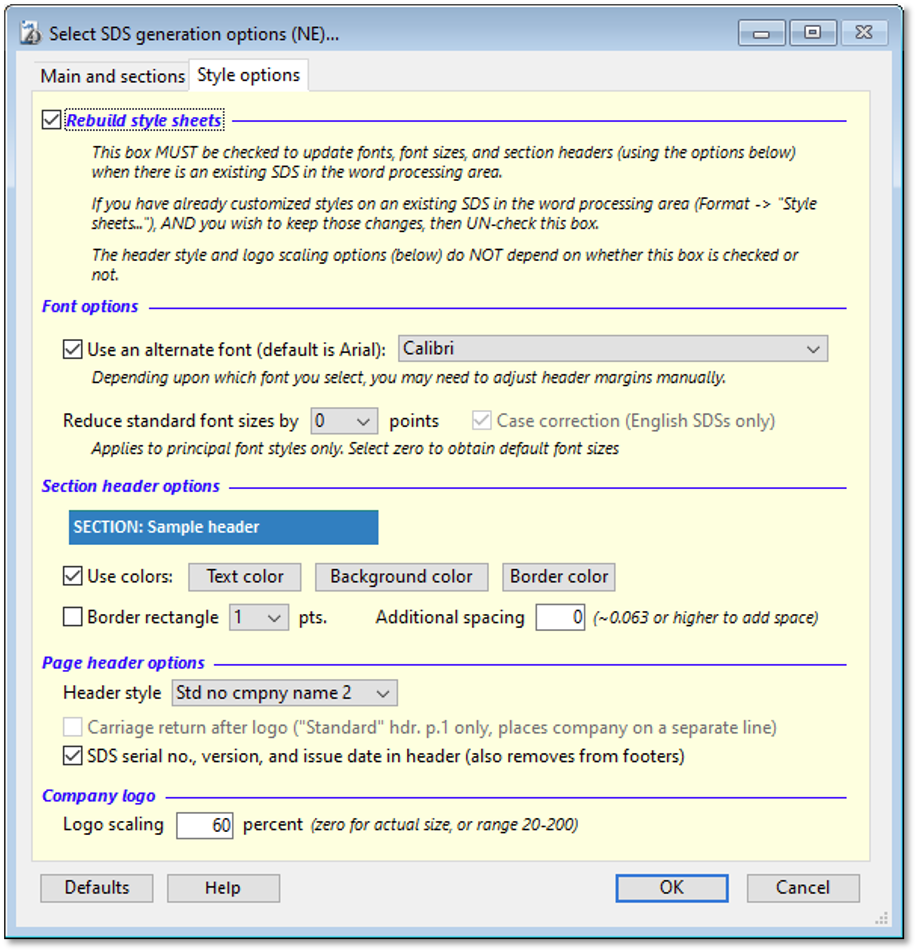
SDS generation options dialog, "Style options" (second) tab.
Rebuild style sheets (advanced topic)
When the Rebuild style sheets box is
checked, the program automatically re-creates all style sheets
used in the SDS according to your selection of font,
font size reduction, and section header.
The SDScribe™ word processing
area makes use of style sheets that are similar to those used
in Microsoft® Word. After you generate the SDS, the name of each
style sheet appears just above the ruler in the word processing area, in a
drop-down menu. When you click into the SDS text, the drop-down menu will
display the style sheet for the text where the cursor is located.
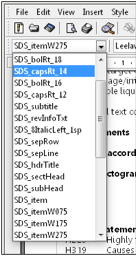
Style sheet display and drop-down menu.
You can take advantage of this feature to manually
customize the style of the generated SDS. From the word processing
area menu bar, select "Format
-> Style sheets…" and click on the name of the style you
wish to edit. Then click on the Edit button.
However, these manual style sheet customizations in the
word processing area apply only to the SDS that you are
generating. If you subsequently open another SDS, the
customizations you made to style sheets in the previous SDS won't be
available.
For this reason, it is best to keep the Rebuild
style sheets box checked, and use the "SDS
generation options" dialog to make font and header style choices. As long
as you save the SDS record after generating the SDS, the program will
"remember" your selections in the dialog for the next time you
generate an SDS (for any SDS record).
In the "SDS generation options" dialog, if you
change the font type, size reduction, or header colors, the program will
automatically check the "Rebuild style sheets"
box. If you then un-check the "Rebuild style
sheets" box, then the program won't be able to implement the
changes you selected.
Use an alternate font (default is Arial)
Selecting a font from the drop-down menu causes the SDS
style sheets to incorporate the new font, rather than defaulting to Arial. With
this option, the style sheets will always be rebuilt.
An alternate font may provide a look that is more suited
to your company image. Some fonts may require more space in the larger sizes
(for example, in document titles). After SDS generation, if the document titles
are truncated or overrun the header area, then you may need to adjust the
header margins used on page 2 and subsequent pages. The first
page of the SDS does not actually place content into the
header.
Reduce standard font sizes by ___ points
Select a number of point sizes (up to four) by which to
reduce the font size on the main style sheets. For example, the standard font
size for hazard classifications in Section 2 is 10 points. If you selected a
reduction of 2 (points) from this menu, then the hazard classifications would
appear on the generated SDS in 8-point text.
This option does not apply to non-English SDSs. For
details, refer to the background help on Tab "Build SDS".
Section
header options
The Text color, Background color,
and Border color buttons in this option allow you to customize
the sixteen main section titles of the SDS. If this option is not
checked, then the main section titles will revert to black text on a white
background. The “SECTION: Sample header” area (immediately
above the buttons) provides a rough preview of the options you select.
Check this box and select a point size for the program to
draw a rectangle of the specified point thickness around the
section titles, across the width of the page. The border rectangle replaces a horizontal
separator line that would otherwise appear above each section title.
The point thickness setting has no effect when the "Border rectangle"
box is not checked.
Specify a non-negative, numeric value in inches. When the
"Border rectangle" box (the previous setting) is
checked, a positive value enlarges the rectangle around the section headers.
When the "Border rectangle" box is not
checked, a positive value moves the horizontal separator line further above the
section header text. If you have also selected a background color, the text
will be off-center, at the base of a horizontal bar; this is probably not a
good design choice.
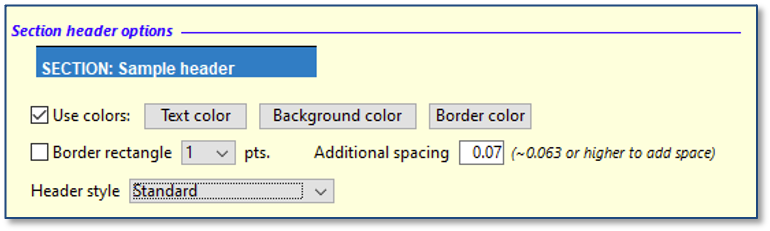
Example of selecting additional spacing and a background color, without the
“Border rectangle” option. This combination is probably not a good design
choice.
The additional spacing option needs a minimum of about
0.063 inches to function. Selecting a lower value disables additional
spacing.
This setting enables you to customize the appearance of
the top of each page on the SDS.
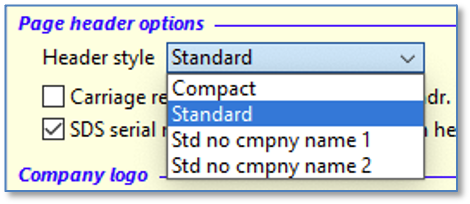
Header style options menu.
At present, there are four document
header styles available. The default style is Standard.
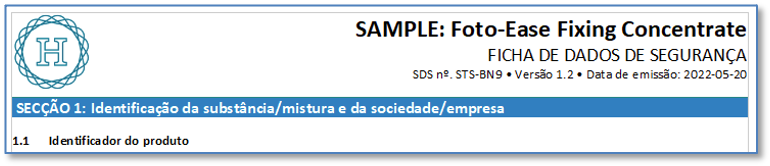
Compact header, first page

Compact header, subsequent pages
The Compact header includes a company
logo on the left, but no company name. The product name is on the right. Below
the product name are the words "SAFETY DATA SHEET" or "PRODUCT
SAFETY DATA SHEET" (translated into the non-English language you selected).
Version-related information can optionally appear below the “SAFETY DATA SHEET”
text, if you have also checked the “SDS serial no.,
version, and issue date in header (also removes from footers)” box.
The same header motif is present on the first and
subsequent pages.
Standard header, first page

Standard header, subsequent pages
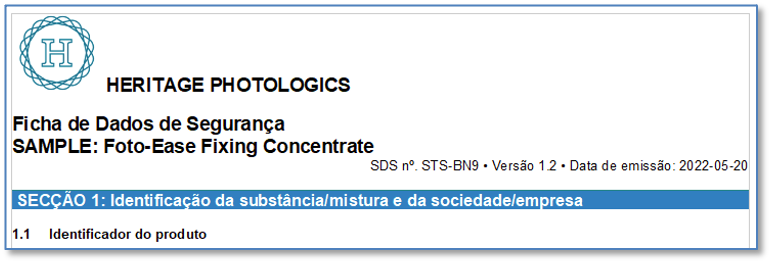
The Standard header for the first
page includes a company logo and company name, the words "SAFETY
DATA SHEET" or "PRODUCT SAFETY DATA SHEET" (translated into the
non-English language you selected), and the product name. All items are
left-justified, except the optional version-related information, which is
right-justified. Subsequent page headers include the
(translated) words "SAFETY DATA SHEET" or "PRODUCT SAFETY DATA
SHEET" and the name of the product, but don’t include the company name or
logo.
Std no cmpny name 1
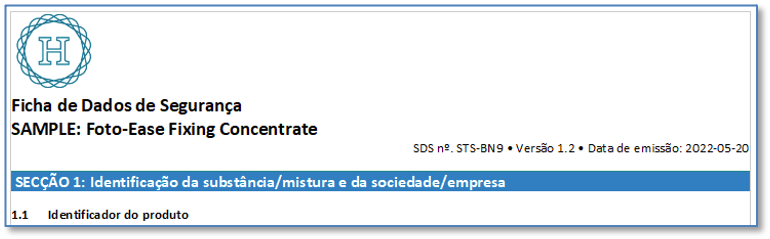
“Std no cmpny name 1” header, first page

“Std no cmpny name 1” header, subsequent pages
The Std no cmpny name 1
header is similar to the Standard header, except the company
name does not appear on the first-page header.
Std no cmpny name 2
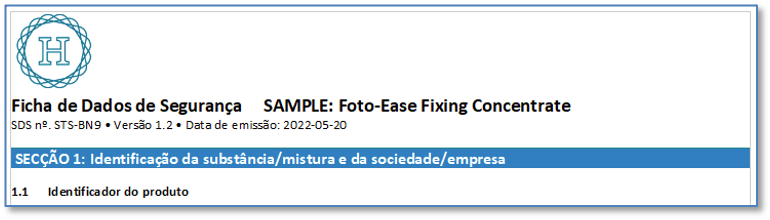
“Std no cmpny name 2” header, first page

“Std no cmpny name 2” header, subsequent pages
The Std no cmpny name 2
header is similar to the Std no cmpny name 1
header, except the product name on the first-page header appears on the same
line with the words "SAFETY DATA SHEET" or "PRODUCT SAFETY DATA
SHEET".
Carriage return
after logo (“Standard” hdr. p.1 only, places company
on a separate line)
Check this box if the program should insert a carriage
return immediately after it places the company logo onto the SDS. This action
should place the company name (the next item in a “Standard” header) below the
logo, rather than to the lower right side of the logo.
If you have not selected “Standard” as the header
style, then this checkbox will be disabled.
SDS serial no., version, and issue date in
header (also removes from footers)
Check this box to place the user-assigned SDS serial
number, version number, and date of issue in the header of each page. This
option adds some height to the first-page header area, but not to subsequent
pages. When this box is not checked, similar information will
appear instead in the footer.
Use this option to change the size of the company
logo appearing at the top of the SDS. Note that the actual size after
scaling will vary with the size of the logo as you pasted it into Tab "1
Identification" or, absent its presence there, in the Preferences
dialog.
If the logo is very large, it may be truncated or
otherwise look odd on subsequent page headers, when you are using the Compact
header format. You should experiment with different scaling percentages if the
logo appearance is sub-par.
[rev. 6.24.2023]