SDS browse list
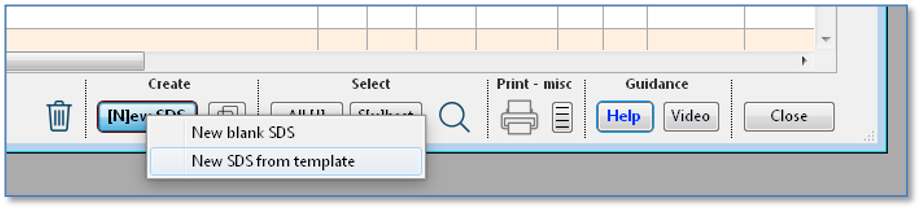
Quick startThe SDS browse list displays both Safety Data Sheets (SDSs) and SDS templates. It's where you edit existing SDSs and create new ones. 1. Click on the [N]ew SDS button below the list:
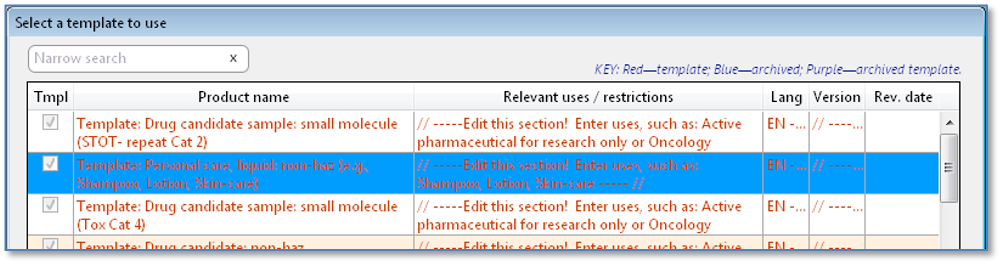
2. Select either New blank SDS or New SDS from template. Templates have areas pre-filled with suggested content. 3. For the template option, the program shows a list of templates. Select a template that best matches the type of product (e.g., a glass cleaner, a floor stripper, a hair conditioner, paint, etc.):
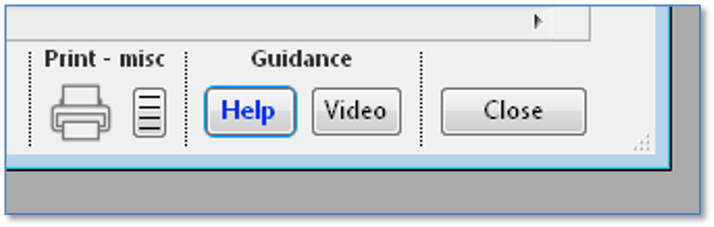
4. The program will display an SDS entry form. With the template option, some of the fields on the form will already contain information. Refer to (this) help window again when the form opens. |
SDS browse list – details
I. What is it?
· A list of existing safety data sheets (SDSs) and SDS templates.
· It’s the first thing you see when opening SDScribe™.
· Text colors (key in right corner above list)
o Black: SDS
o Red: template
o Blue: archived SDS
o Purple: archived template
II. Browse list controls and functions
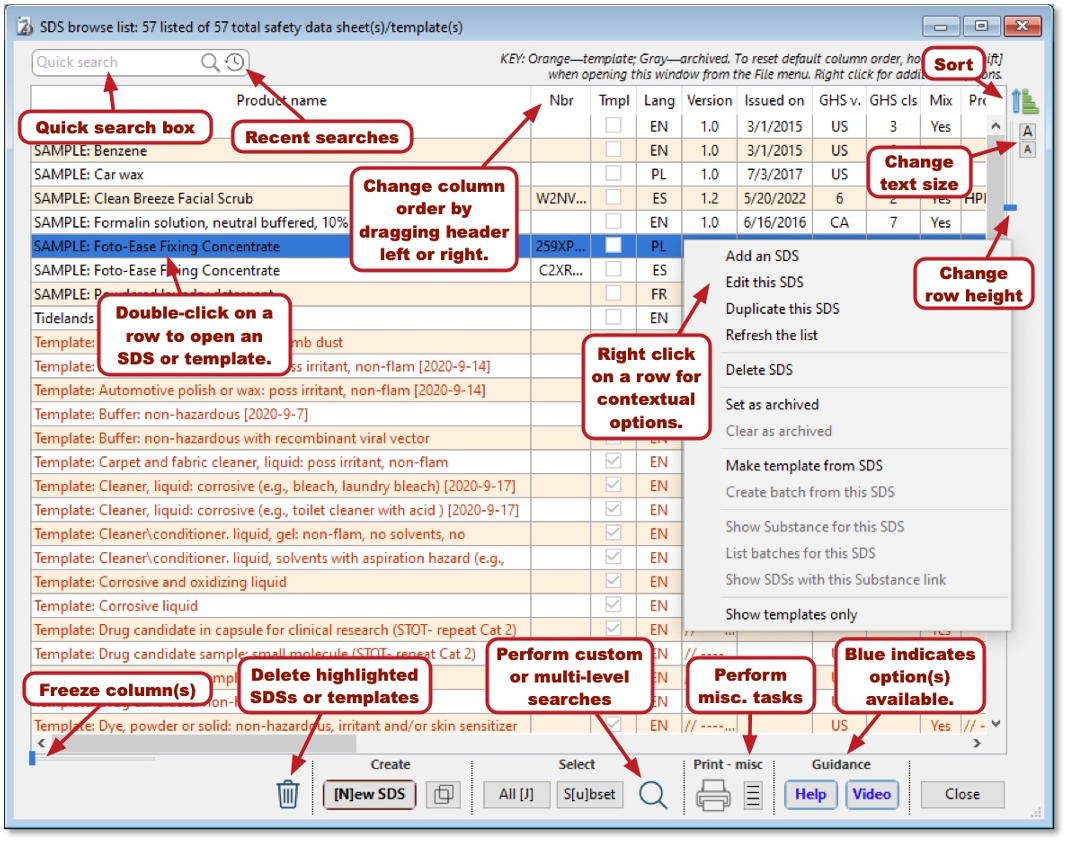
SDS browse list.
1. Quick search box (top left) — Enter what you are searching for, then click on the magnifying glass. Or press [Enter] or [Tab] on your keyboard to search. Entries are not case-sensitive. Among other things, you can enter and search for:
a. A product or substance name
b. A product number
c. A supplier name
d. An identification number, such as a CAS, EC, EU Annex VI index, UFI, or RTECS number
i. The program uses regular expressions (patterns) to try to recognize CAS, EC, index, UFI, and RTECS numbers.
e. A GHS hazard (H-) code or GHS precautionary (P-) code
i. The program uses regular expressions to try to recognize H- and P-codes.
f. The special words “Archived”, “Prop. 65”, or “Template”:
i. “Archived” — find SDSs or templates that have been designated as archived (the Archive check box at top right on the entry form).
ii. “Template” — find SDS records designated as templates.
iii. “Prop. 65” (or “Prop 65” without the period) — find SDS records with: (1) for SDSs with components, at least one component that has current California Proposition 65 listings on its linked Substance record; or (2) for SDSs linked directly to Substances, a current Prop. 65 listing on its linked Substance record.
g. Modifiers that you can enter with the search text:
i. Quotation marks around your search, to indicate that you are looking for an exact match. Without quotes the program will perform a partial, “starts-with” search. For example:
"SAMPLE: Foto-Ease Fixing Concentrate"
…will match an SDS with this exact name.
ii. An asterisk (*) or the "at symbol" (@), used as a wildcard prefix to the search text, to indicate that the program should look for a match anywhere within the field text (a “contains”-type search). For example, the search:
*Colorado
will match a record with the field content, "ArizonaColoradoNewMexico". (Searches are not
case-sensitive, so you obtain the same results with capitals or lower-case
letters.)
iii. The prefix “UFI: ” causes the program to search in the Unique Formula Identifier field. You can enter the hyphens to separate character clusters, or leave them out. For example,
UFI: 2GFT-64JK-2QT5-7HA4
or
UFI: 2gft64jk2qt57ha4
(The UFI is stored in the program without the hyphens.)
iv. The prefix “Contains ”, to search among the ingredients (components) of a mixture. For example,
Contains sodium borate
or
Contains 1330-43-4
…causes the program to search for SDS records where
an ingredient (component) of the product is sodium borate, or the name begins
with “sodium borate” (e.g., “sodium borate anhydrous”). Note that the “Contains” prefix does not
perform the same function as the wildcard prefix.
2. Recent searches (top left, button with pop-up menu) — Keeps your last ten quick searches, in case you want to repeat a search.
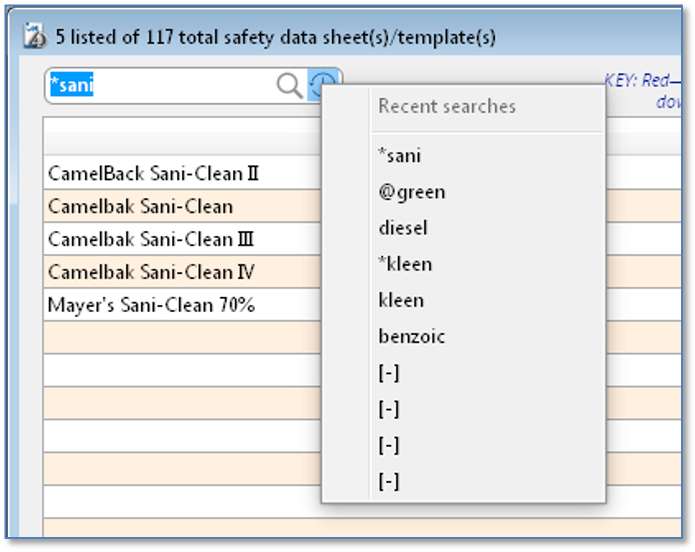
Recent searches menu (up to ten most recent)
3. Freeze column(s) (“slider”, lower left) — Keeps one or more columns visible when you scroll horizontally, like a spreadsheet.
4. [N]ew SDS (button with pop-up menu) — Create a safety data sheet, either starting with a blank entry form (“New blank SDS”) or by using a template (“New SDS from template”). If you [Alt]-click on the button, the pop-up menu will list the names of templates you can select.
5.
 Delete (button
with trash can icon) — Delete one or more SDSs or templates, including all
related components, hazards, exposure levels, etc. The row(s) you want to
delete must first be highlighted. WARNING: You cannot
undo a deletion.
Delete (button
with trash can icon) — Delete one or more SDSs or templates, including all
related components, hazards, exposure levels, etc. The row(s) you want to
delete must first be highlighted. WARNING: You cannot
undo a deletion.
6.
 [D]uplicate
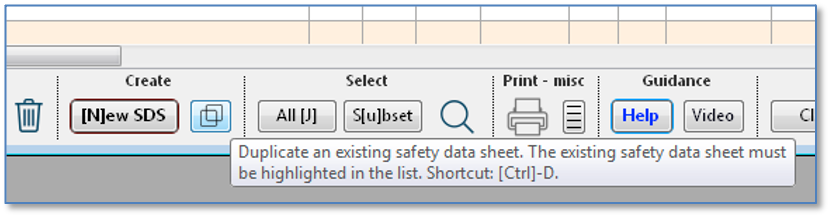
(button with double-square icon and pop-up menu) — Duplicate one or more
highlighted SDSs or templates in the list. You can perform a simple duplication
of an SDS, or duplicate it and make the duplicate into a template.
For the template option, the program will present a dialog offering to delete
content that is likely unique to a particular SDS product.
[D]uplicate
(button with double-square icon and pop-up menu) — Duplicate one or more
highlighted SDSs or templates in the list. You can perform a simple duplication
of an SDS, or duplicate it and make the duplicate into a template.
For the template option, the program will present a dialog offering to delete
content that is likely unique to a particular SDS product.
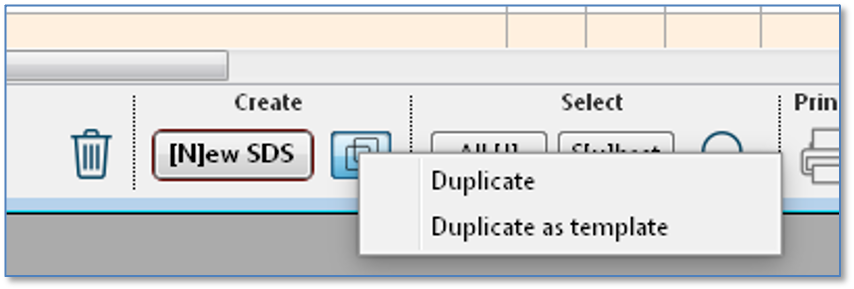
Duplicating an existing SDS (highlighted in the list).
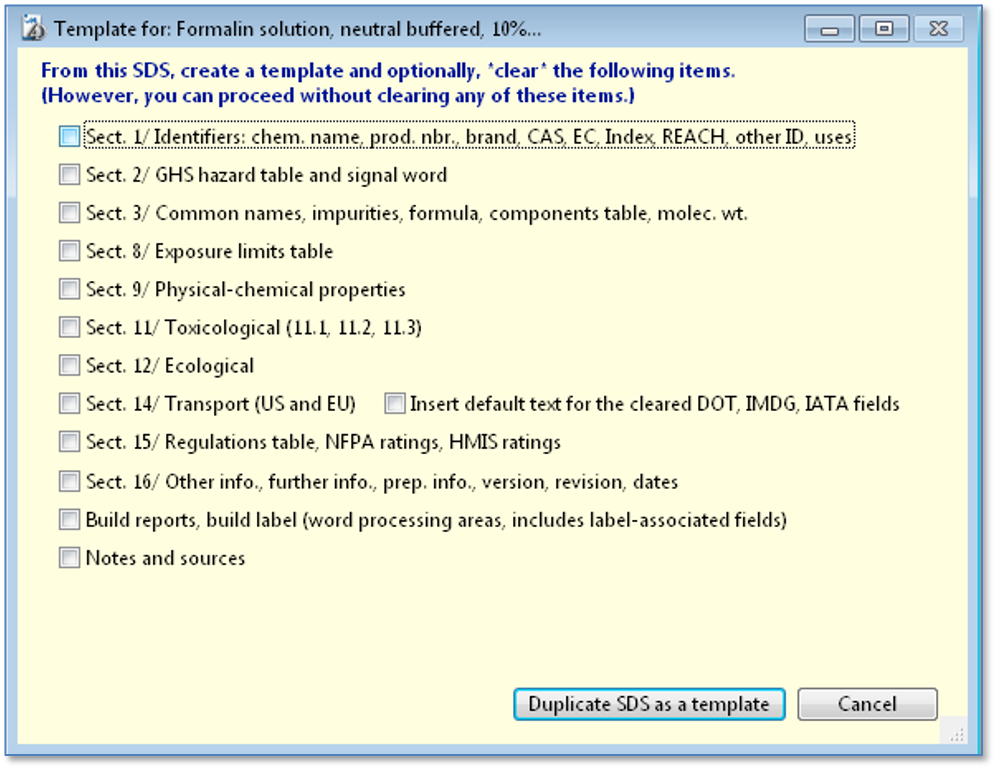
Duplicate an existing SDS as a template. The program will offer to delete
specified information from the template.
7. All [J] (button with pop-up menu) — Displays SDS and/or template records in the browse list:
a. Current SDSs — Non-archived SDSs (no templates);
b. Current templates — Non-archived templates (no SDSs);
c. SDSs and templates — All records (SDSs or templates, including archived);
d. Archived — Archived SDSs or templates;
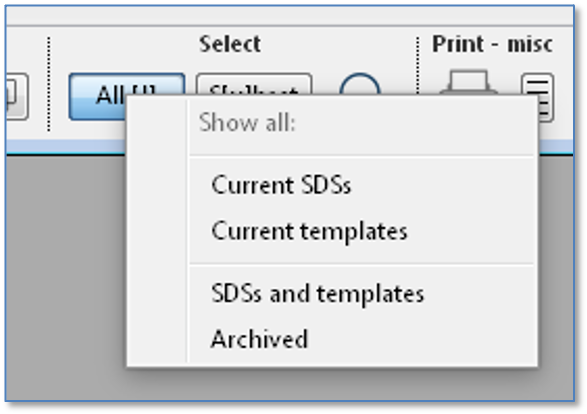
“All [J]” button options (pop-up menu).
When the browse list first opens, either on startup or later (when you select “File -> Safety data sheets” from the menu) the list displays current SDSs. No archived items or templates appear in the list.
8. S[u]bset (button with pop-up menu) — Displays or omits the records that you have selected (highlighted rows in the browse list). Also offers to “remember” or “recall” the currently-displayed SDSs/templates, whether highlighted or not. The program will remember the current list until you close the window, or until you ask it to remember another selection of SDSs/templates.
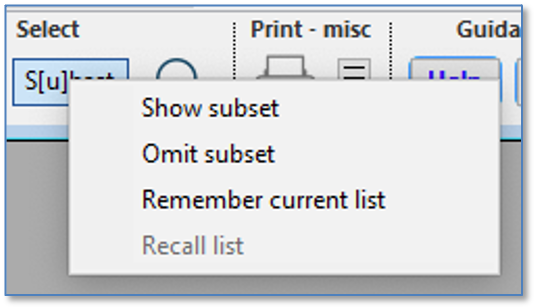
“S[u]bset button options (pop-up menu).
9.
 [F]ind
(button with pop-up menu) — Performs specific types of searches, which you
select from the pop-up menu.
[F]ind
(button with pop-up menu) — Performs specific types of searches, which you
select from the pop-up menu.
For any of the [F]ind menu options, if the browse
list is displaying a number of records which is fewer than the
total number available, then the program will first ask whether the search
should consider only the listed records (“Find within current selection”). There is also an option to exclude
archived records. To skip the dialog, hold down the [Alt] key while selecting from the [F]ind pop-up menu. In this case, the program will search all
records, whether listed or not.
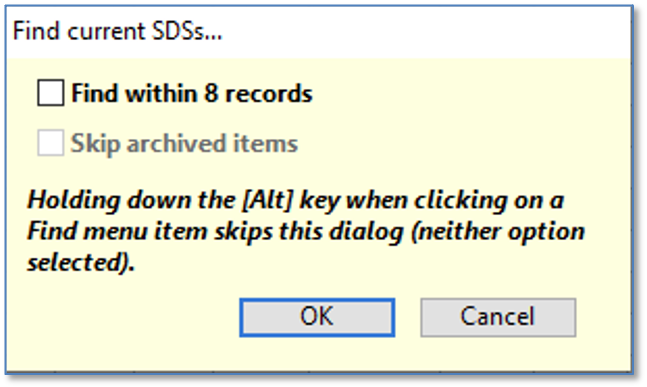
“Find within” and “Skip archived” prompt associated with the [F]ind button
pop-up menu. The “Find within current selection” box is disabled because all SDS
and template records are listed.
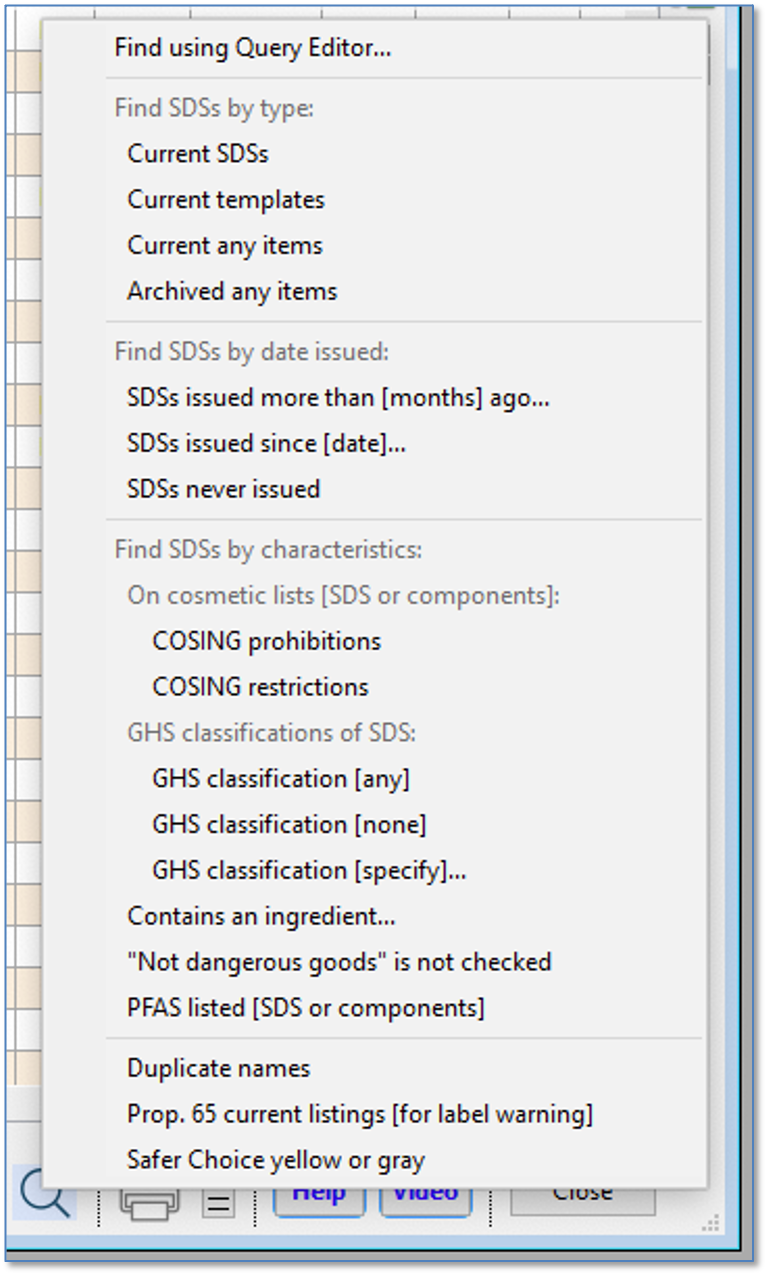
“[F]ind” button pop-up menu.
a. Find using Query Editor… — Displays a dialog in which you can perform particular searches, including multi-level ones. Allows you to save searches to disk for future use. When writing multiple-line (multi-level) searches, always place the “OR” search conditions before the “AND” search conditions.
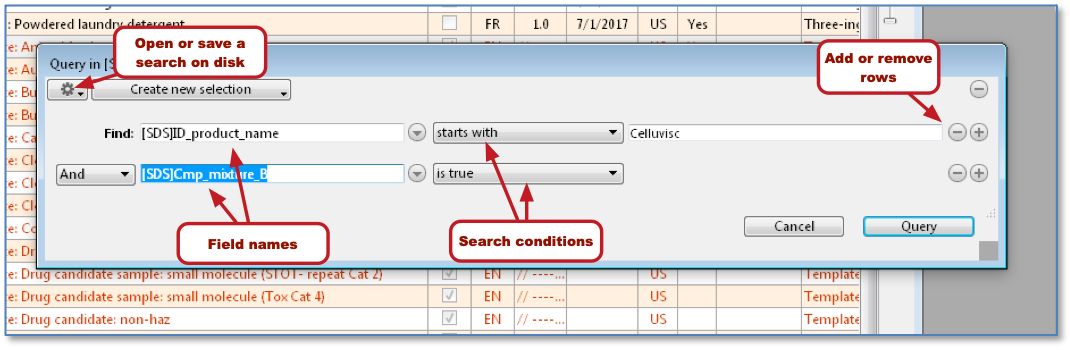
Query editor
b. Current SDSs — Finds records that do not have the Archive box checked and which do not have the Template box checked.
c. Current templates — Finds records that do not have the Archive box checked, and which do have the Template box checked.
d. Current any items — Finds records that do not have the Archive box checked (of any type).
e. Archived any items — Finds records that have the Archive box checked (of any type).
f. SDSs issued more than [months] ago… — Finds SDSs that have an issue date (on the SDS “16 Other” tab) more than a specified number of months before today's date. The program will prompt you to enter the number of months to “look back” from today’s date.
g. SDSs issued since [date]… — Finds SDSs that have an issue date on or after a date that you specify. The program will prompt you to enter the target date.
h. SDSs never issued — Finds SDSs with a blank issue date.
|
When to issue SDSs… Some jurisdictions require that an SDS be reviewed within a
certain number of months or years from the date on which it was last
released. For example, at this writing Australia, China, and Singapore
require a review every 5 years; Taiwan every 3 years. More common is a requirement that the SDS be released within a
certain number of months of discovering
new information pertinent to the SDS, such as changes in hazard
classification or protection requirements. For example, US-OSHA presently
requires an SDS release within three months of discovering the need for a
revision (“significant” changes in hazards or protection requirements). The Canadian requirement is a release within 90 days of “significant new data”. The EU REACH regulation uses the term “without delay” and further requires “The update must also be provided to all former recipients to whom the substance or mixture has been supplied within the preceding 12 months”. |
i. COSING prohibitions — Finds SDSs representing substances or SDSs representing mixtures (with components) that European Community (EC) regulations identify as being prohibited from use in cosmetics within the European Union/European Economic Area (EU/EEA).
j. COSING restrictions — Finds SDSs representing substances or SDSs representing mixtures (with components) that the EC identifies as being usable in cosmetics only under specific conditions, typically concentration limits.
k. GHS classifications [any] — Finds SDSs with any GHS hazard classifications (the “Classifications” tab of the Hazard table, on Tab “2 Hazards” of the SDS entry form.
l. GHS classifications [none] — Finds SDSs with no GHS hazard classifications in the Hazard table.
m. GHS classifications [specify] — Presents a list of GHS classifications, from which you can select one or more classes for the program to find. This is an “or”-type search, so if you select aspiration toxicity cat. 1 (“Asp. Tox. 1”) and flammable liquids cat. 2 (“Flam. Liq. 2”), the program will search for SDSs that contain one, the other, or both hazard classes.
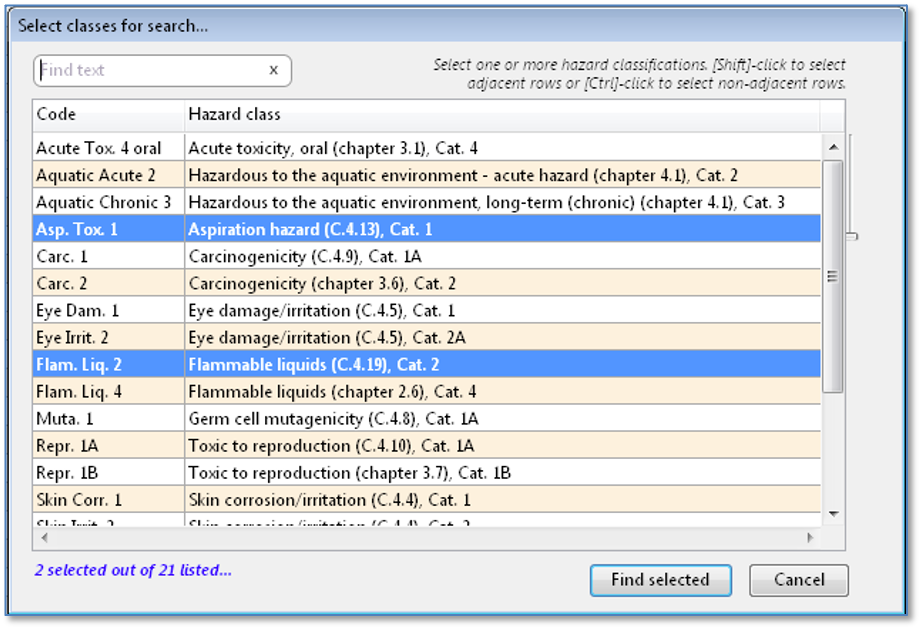
“GHS classifications [specify] search, from the [F]ind button menu.
n.
Contains an ingredient… — Finds SDSs that contain a
specific ingredient/component, which the program will prompt you to enter. You
can enter CAS or EC number, or a partial name for the ingredient, as you would
when performing this task using the Quick search box.
o.
“Not dangerous goods” is not
checked —
Finds SDSs for which the “Not dangerous goods” box on the transportation tabs
of the SDS entry form (“14.1 Transport (US)” and “14.2 Transport (EU)”) is not checked. When this box is
unchecked, the SDS product is generally subject to transport regulations for
hazardous materials. Excludes templates.
p.
PFAS listed [SDS or components] — Finds SDSs for which (1) the Regulations
table (SDS
Section 15) contains at least one row with the phrase “PFAS” in the
description; or (2) the Regulations table for any linked Substance
record (for
either an SDS component or for the SDS itself) contains at least one row with
the phrase “PFAS” in the description.
q.
Duplicate names — Finds SDSs having the same
product name. This option may assist in locating earlier SDSs for the same
product.
r. Prop. 65 current listings [for label warning] — Finds SDSs representing substances or SDSs with components that have current California Proposition 65 (Prop. 65) listings. A current listing is one for cancer or reproductive harm, which has not expired.
s. Safer Choice yellow or gray — Finds SDSs for substances or SDSs with components that have “Yellow triangle” or “Grey square” EPA designations. These designations indicate that the substances have limited or no use as ingredients in a product formulated to be eligible for an EPA “Safer choice” label.
10.  [P]rint
(button with pop-up menu) — Presents options for printing records from the
browse list.
[P]rint
(button with pop-up menu) — Presents options for printing records from the
browse list.
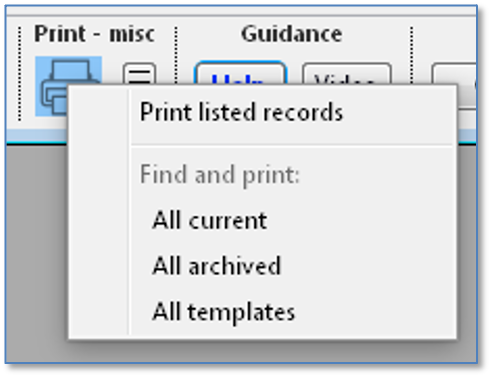
a.
Print listed records — Displays
a “Select report template” dialog, showing available report
templates[1]
for printing. We have provided some sample report templates to get you started;
however, you can also create your own templates by clicking on the Open
report designer button.
Select the report template to use by highlighting it in the list, and then
click on the Print a listed report button. Note that report
templates that have titles containing “toDisk”
will create a tab-delimited text file on disk rather than generating
printed output. You can then open this file using a spreadsheet program like
Microsoft Excel.
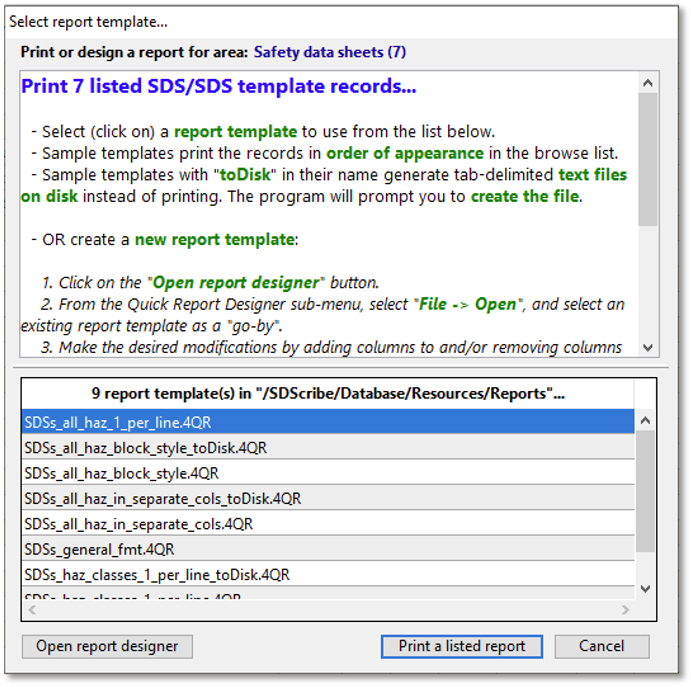
“Select report template” dialog.
b. (Find and print) all current — Finds all SDS and template records which are not marked as Archived, and displays the “Select report template” dialog (as shown above). After the printing completes, the listed records should remain the same as before printing.
c. (Find and print) archived — Finds all SDS and template records which are marked as Archived, and prints them using the same “Select report template”.
d. (Find and print) all templates — Finds all SDS template records and prints them using the same “Select report template” dialog.
Select report template (dialog)
i. Print a listed report (button) — Prints the selection of SDSs and/or SDS templates, using the highlighted report template. For report templates with titles containing “toDisk”, the program will instead prompt you to name a file on disk for placing tab-delimited text. You can then open this file using a spreadsheet program like Microsoft Excel.
ii. Open report designer (button) — Opens the report designer (Quick Report editor). The report designer allows you to edit an existing report template, or to create a new one. If convenient, you can open one of the sample templates we provided from the Quick Report editor’s File menu, and then save the template under a different name. That way, you can work on a copy of the original without affecting the sample itself.
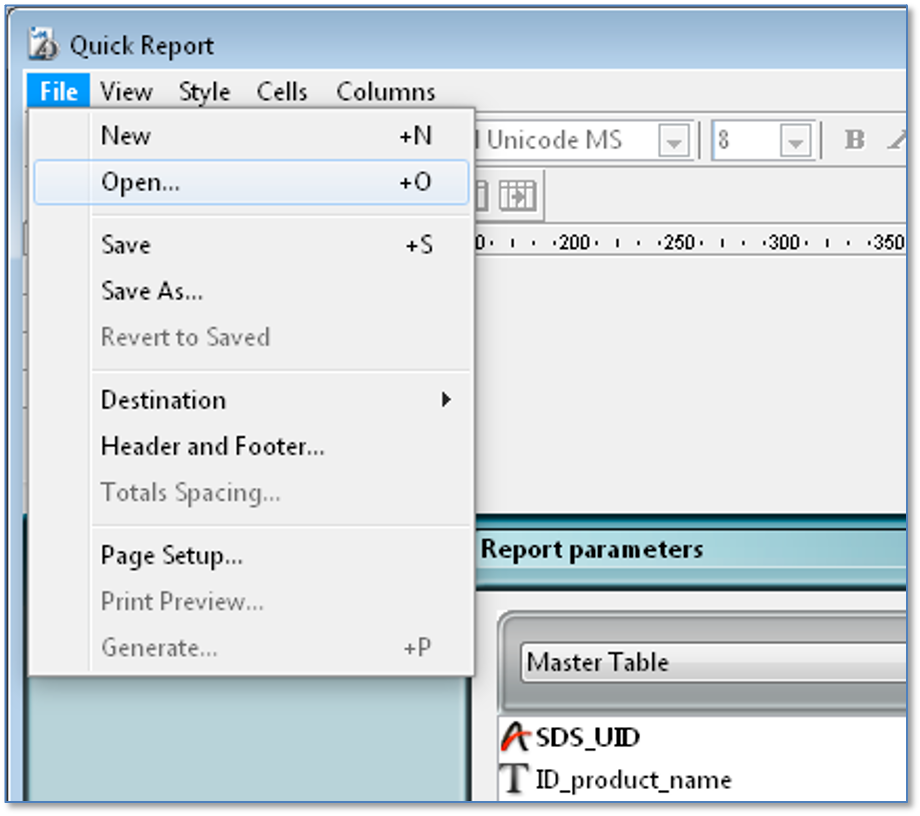
Quick Report editor, selecting “File->Open” to edit an existing template.
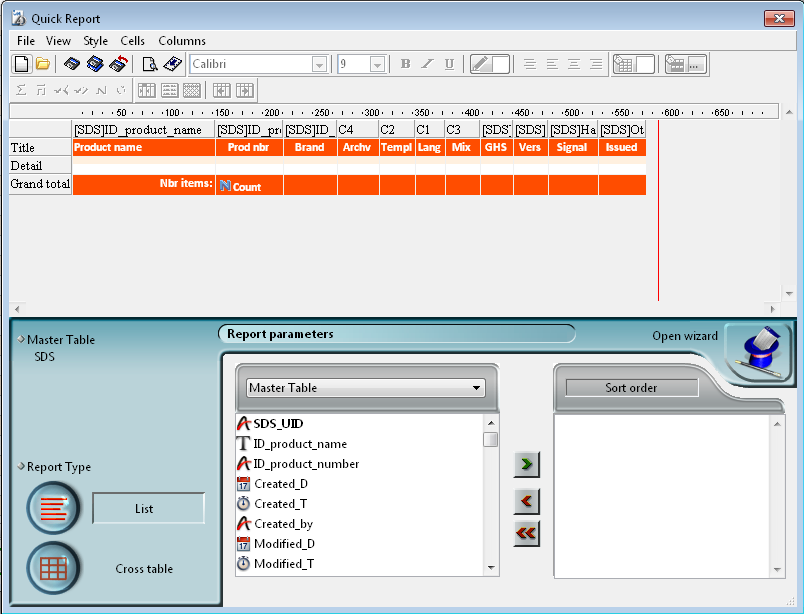
Quick Report editor, for creating new report templates.
(1) Use the “File->Open” command to open an existing template;
(2) Make changes as desired;
(3) Use “File->Save as” to save the revised template under another name.
The file name on disk for an SDS report template should begin with the prefix: “SDSs_”, so that it will appear in the “Select report template” list the next time you want to print SDS records using it. For example, if you opened a sample template named “SDSs_general_fmt.4QR” and then replaced some of its columns with firefighting-related columns (fields), you might save it with a new name like “SDSs_fireHazards.4QR”.
11.  Misc. actions
(button, with pop-up menu) — Includes options for generating and printing
labels, saving SDSs to disk in Portable Document Format (pdf) and Microsoft
Word formats, and certain other functions. Some items are available only if one
or more records in the list are highlighted. Items related to pdf generation
require a specific Windows pdf print driver (Win2PDF®); these items
will be disabled if the program cannot find the driver.
Misc. actions
(button, with pop-up menu) — Includes options for generating and printing
labels, saving SDSs to disk in Portable Document Format (pdf) and Microsoft
Word formats, and certain other functions. Some items are available only if one
or more records in the list are highlighted. Items related to pdf generation
require a specific Windows pdf print driver (Win2PDF®); these items
will be disabled if the program cannot find the driver.
Discussion concerning the menu options follows immediately below.
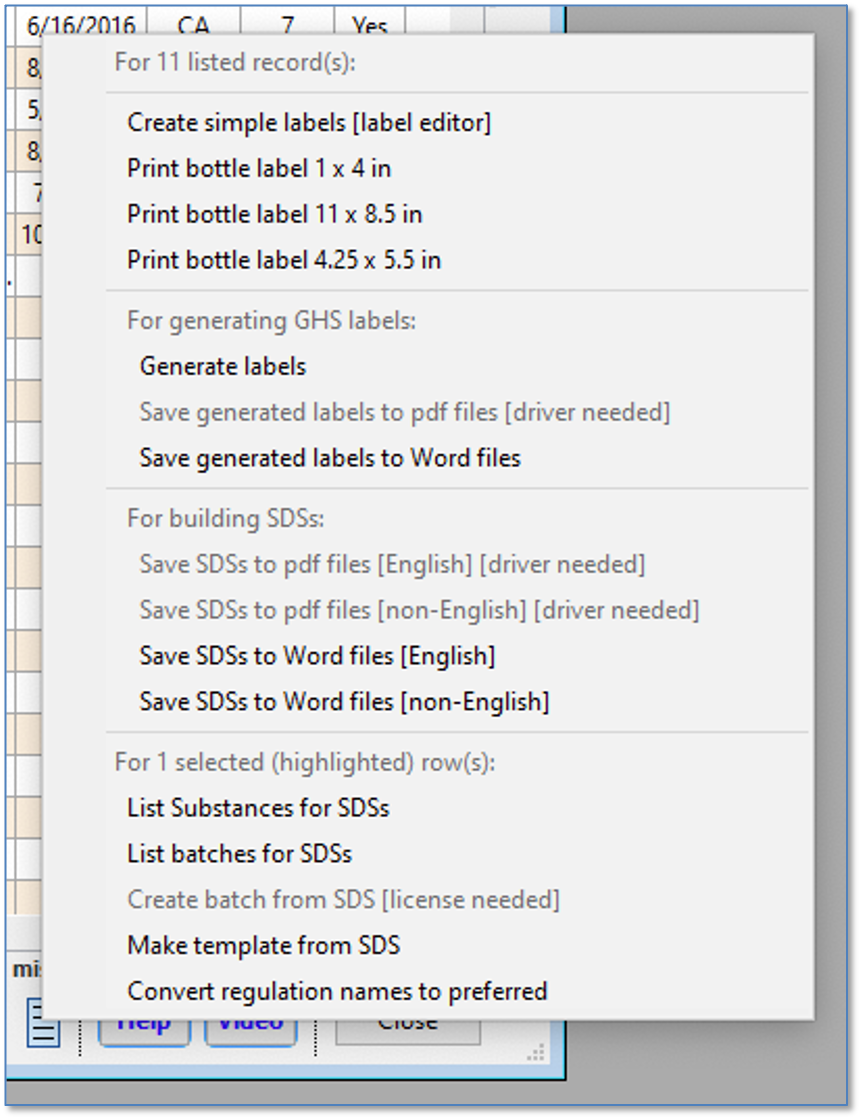
Misc. Actions button, pop-up menu.
a. SDS Actions menu items
1.
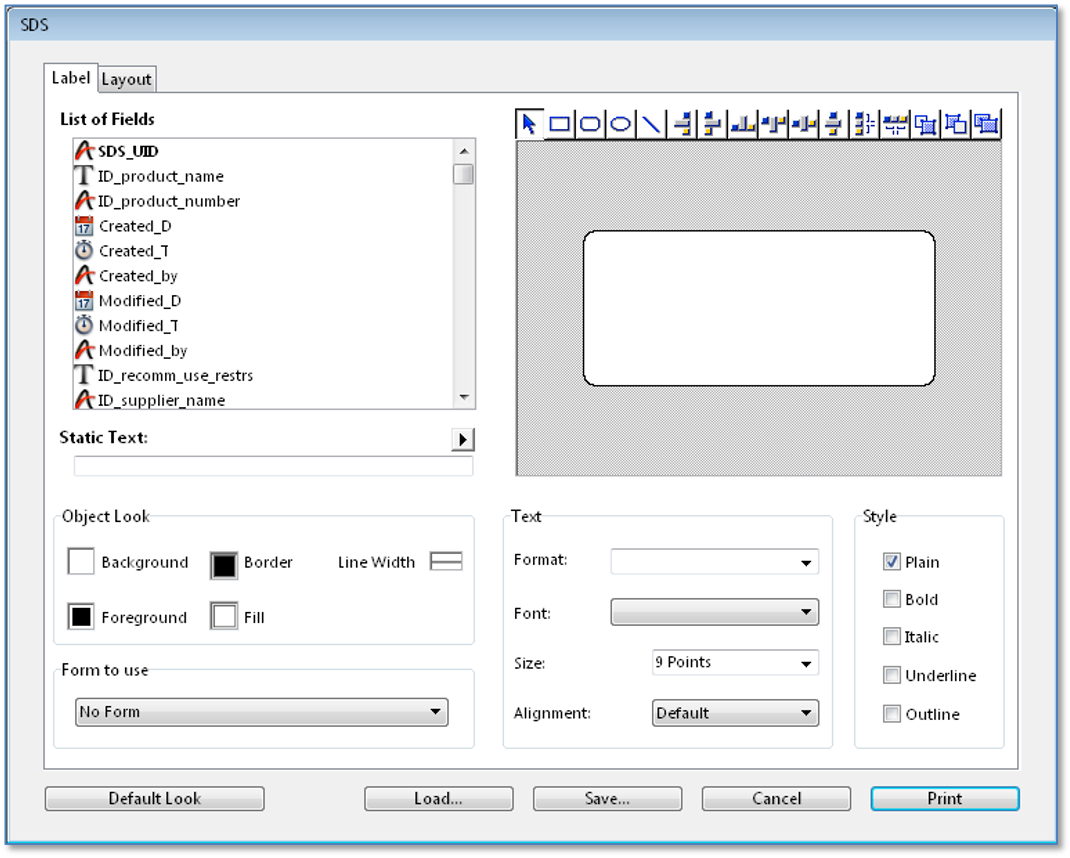
Create simple labels [label editor]
— This menu item displays a Label Editor. The "Label"
tab of the editor allows you to drag fields from the SDS field listing ("List of fields") onto a white label
design area at right. There are options for changing font, size, style,
alignment, color, etc.
The "Layout" tab allows you to specify the type of
paper ("Print Setup" button), the number of labels
that should appear on each sheet of paper, and the printing order. These
features are useful if you are planning to use sheets of Avery or similar
pre-cut labels.
The "Save" button at the bottom saves the label
configuration to disk as a template, once you have completed your label design.
You can then re-load the label template in the future ("Load"
button).
When you wish to print two fields together (one directly after another
horizontally) on the label, you can drag the second field on top of the first,
and it will immediately follow the first field when printed. For example, you
can combine the fields ID_supplier_address1 and ID_supplier_address2
in this fashion; if the ID_supplier_address1 fields is empty, but the
ID_supplier_address2 field has contents, then the ID_supplier_address2 content will
"slide" over to the left.
The Label Editor is useful only for relatively simple labels. It can print
fields from the main SDS table (as shown in the window title), but not
from related tables. Thus, it cannot print hazard statements,
exposure levels, regulations, synonyms, etc., that are associated with an SDS
product.
The Label Editor.
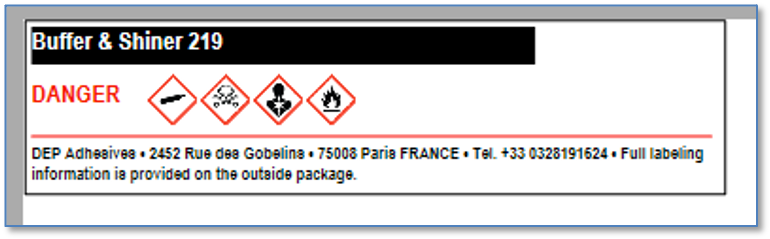
2. Print bottle label 1 x 4 in — This menu item produces a relatively basic, 1-inch by 4-inch bottle label for each listed SDS record. One label will print on each sheet of paper. Displays the standard system print dialogs before printing. The label contains, where available in the individual SDS record:
Label, 1 x 4 inch.
a. Name. The program will use the substance name (Subs. name on tab “1 Identification” of the SDS), if available; otherwise, it will print the product name.
b. CAS number, EC number, UN number, and chemical formula.
c. Signal word.
d. Hazard pictograms (horizontally, up to nine), provided that the product is *not* designated as a non-hazardous material.
e. Supplier name, address, and telephone.
f. The statement, "Full labeling information is provided on the outside package."
3.
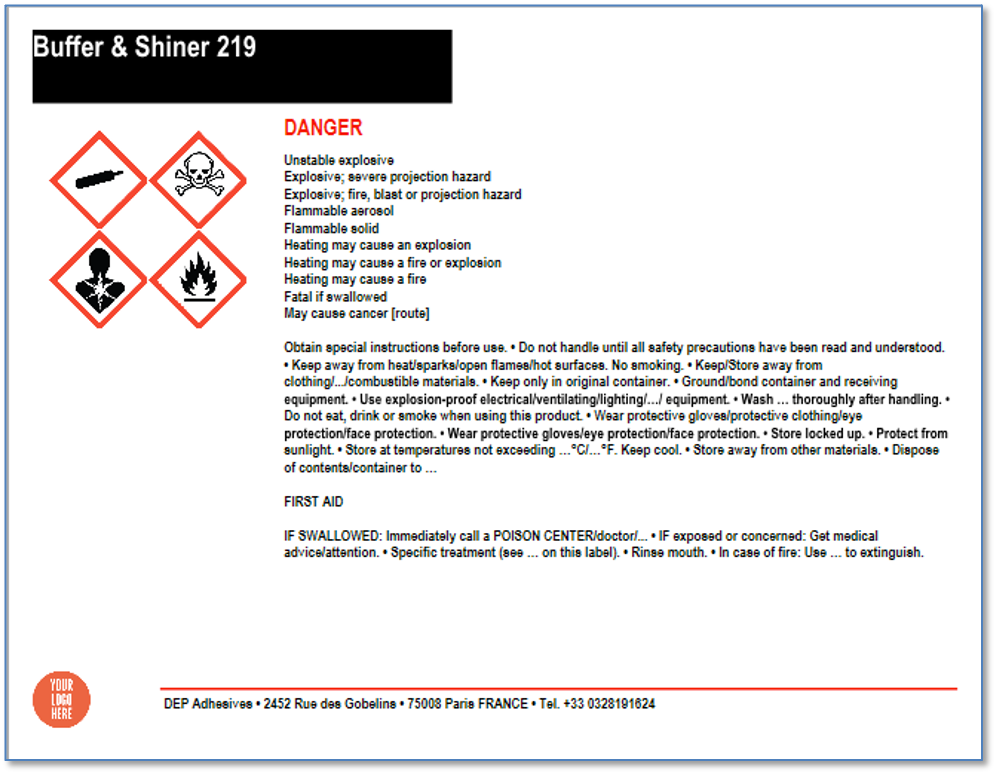
Print bottle label 11 x 8.5 in
— This item produces an 11-inch by 8.5-inch bottle label (landscape
orientation, printed approximately at the size of standard paper) for each
listed SDS record. One label will print for each sheet of paper. Displays the
standard system print dialog before printing. The label contains, where
available:
Label, 11 x 8.5 inch.
a. Name. The program will use the substance name (Subs. name on tab “1 Identification” of the SDS), if available; otherwise, it will print the product name.
b. CAS number, EC number, UN number, and chemical formula.
c. Signal word.
d. Hazard statements.
e. Precautionary statements, separated into the 200-400-500 series and the 300 series (first aid).
f. Hazard pictograms (vertically), provided that the product is not designated as a non-hazardous material.
g. Supplier name, address, telephone, and company logo, at the bottom.
4. Print bottle label 4.25 x 5.5 in — The program will display the standard system print dialogs before printing.
a. Name. The program will use the substance name (Subs. name on tab “1 Identification” of the SDS), if available; otherwise, it will print the product name.
b. CAS number, EC number, UN number, and chemical formula.
c. Signal word.
d. Hazard statements.
e. Precautionary (P-) statements, separated into the 200-400-500 series and the 300 series (first aid).
f. Hazard pictograms (vertically), provided that the product is *not* designated as a non-hazardous material.
g. Supplier name, address, telephone, and company logo, at the bottom.
Label, 4.25 x 5.5 inch.
5.
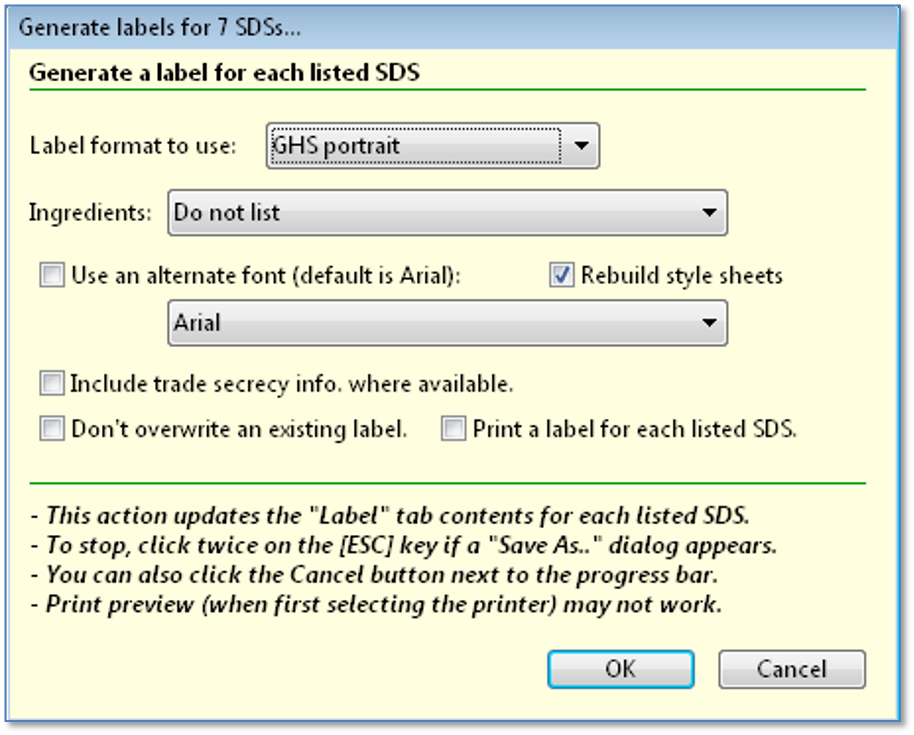
Generate labels — This menu item
will generate the full GHS-type label for each SDS
record in the browse list. It’s as if you double-clicked to open the
entry form for each listed SDS, went to the "GHS label"
tab, and clicked on the Build label button.
The program presents a dialog, prompting you to select a format and other
preferences for the labels. There are check box options to skip SDS records that
have existing labels (“Don’t overwrite an existing label”), and to print
(“Print a label for each listed SDS”).
Generate labels, options dialog.
NOTE: This option makes changes
to the individual SDS records, by placing the generated label into the word
processing area on the “GHS label” tab of the SDS entry form. For more
information, click on the Guide
button for that tab.
6.
Save SDS labels to pdf files —
This menu item attempts to write the generated label ("GHS label"
tab on the SDS entry form) for each listed SDS record as a Portable Document
Format (pdf) file on disk.
The program will display a dialog, for you to select a file name format for the
pdf files that it will create. By default, the file name will have the format: Label_[product name]_[version].pdf
After you click the OK button on the dialog, the program will
then prompt you to select a destination folder where it will place the pdf files
(or where it will place the "target" folder with the pdf files inside).
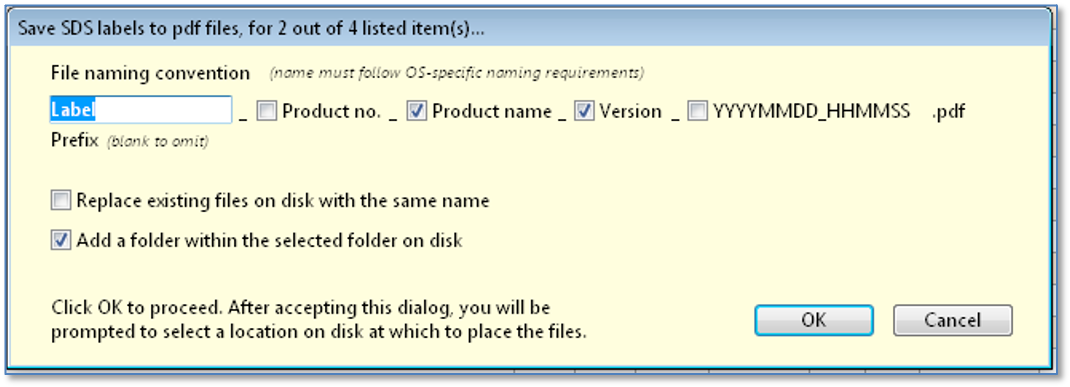
Save SDS labels to pdf files dialog.
|
Label file names and file systems… 1. You can specify additional details for each file name, such as the SDS product number and the last-modified date and time (as "YYYYMMDD_HHMMSS"). 2. If the name for a particular pdf file contains any characters that are not permitted under the Windows operating system, the program will remove these characters before saving the file. 3. In order to use this feature, you must have the Win2PDF® print driver installed on your workstation. If you do not have this print driver, then this menu item will be disabled (gray text). 4. By default, the program will create a "target" folder on disk in which to place the pdf files it writes. The name of this folder will be of the format "Files_YYYYMMDD_HHMMSS", where the date and time correspond to the time at which the write to disk begins. You can un-check this option ("add a folder within the selected folder on disk"), to place the files directly in a destination folder. You can also check a box to "replace existing files on disk with the same name". 5. Some versions of Windows have a maximum of 260 characters in the full path to the destination. If you select a destination folder that is too deeply nested within other folders, so that the “long path” file name exceeds this limit, then the program will display an error message. You will need to go back and specify a folder that is less nested inside other folders. For example, you might select your "Documents" folder.) 6. The write to disk for a particular SDS record will not succeed if: a. The label area in the SDS has no contents (i.e., the word processing area on the "GHS label" tab is empty). b. An existing folder at the destination has the same name as the pdf file to be written to disk. c. An existing file at the destination has the same name as the pdf file to be written to disk, and you did not specify to overwrite existing files ("replace existing files on disk with the same name"). d.
There
is an access privilege limitation, locked file, or similar operating system
error, which prevents the program from writing files to the destination you
have selected. |
7.
Save SDSs to pdf files [English]
— This menu item works in a similar fashion to the “Save SDS labels to
pdf files” menu item, in the sense that it attempts to write a
generated pdf file to disk for each listed SDS record. In this case, however,
the file represents the SDS itself, from the "Build SDS"
tab on the SDS entry form. The program displays the same dialog as discussed
earlier for selecting a naming convention. By default, the file name will have
the format: SDS_[product name]_[version].pdf
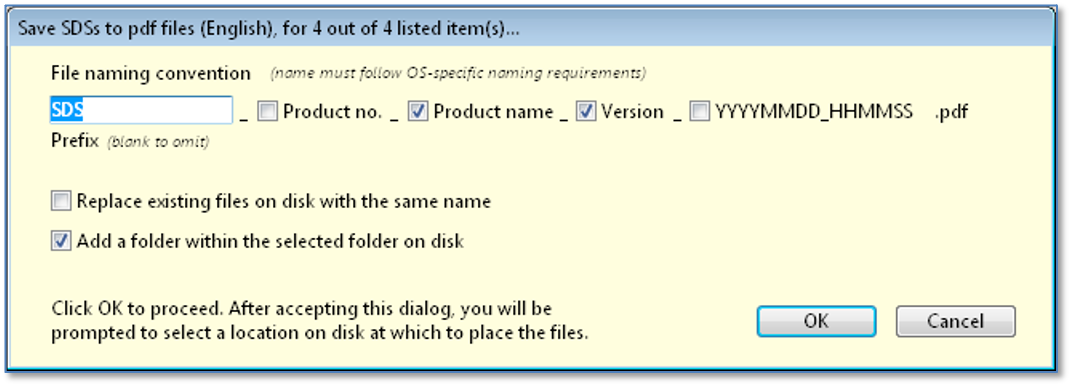
Save SDSs to pdf files dialog.
8. Save SDSs to pdf files [non-English] — This menu item works in a similar fashion to the item “Save SDSs to pdf files [English]”, except it uses the non-English SDS content from the "Build SDS non-English" tab, on the SDS entry form.
9.
Save SDS labels to Word files —
This menu item attempts to write the generated label ("GHS label"
tab on the SDS entry form, for each listed record) as a Microsoft
Word-compatible (*.doc) file on disk. The methodology matches that of the “Save
SDS labels to pdf files” menu item, but does not require the presence of the Win2PDF® print driver.[i]
The program will display the dialog for selecting a file name format for the
Word files that it will create. By default files will have the format: Label_[product name]_[version].doc.
10. Save
SDSs to Word files [English] — This menu item attempts to write the
generated SDS ("Build SDS" tab on the SDS entry
form, for each listed record) as a Microsoft Word-compatible (*.doc) file on
disk. The methodology matches that of the “Save SDSs to pdf files
[English]” menu item, but does not require the presence of the Win2PDF®
print driver.
The program will display the dialog for selecting a file name format for the
Word files that it will create. By default files will have the format: SDS_[product name]_[version].doc.
11.
Save SDSs to Word files
[non-English] — This menu item attempts to write the generated SDS
("Build SDS non-English" tab on the SDS entry form,
for each listed record) as a Microsoft Word-compatible (*.doc) file on disk.
The methodology matches that of the “Save SDSs to pdf files
[non-English]” menu item, but does not require the presence of the
Win2PDF® print driver.
The program will display the dialog for selecting a file name format for the
Word files that it will create. By default files will have the format: SDS_[product name]_[version].doc.
12. List Substances for SDS — Displays the Substances linked to the highlighted rows, opening the Substances browse in a separate window. If there are no highlighted SDSs, then this menu item won’t be available.
13. Create
batch from SDS — Uses the items in the Component table (SDS Section 3)
to create a record in the Batches section of SDScribe™.
Exactly one SDS should be highlighted in the list. If the menu item is not
enabled (gray), then you either haven't highlighted one SDS, or you may need to
enter a supplementary inventory license (contact Hazard Solutions for more
information).
The program initially looks for a Substance record that is associated with the
SDS, and then checks for existing batches of the same Substance. If the batches
exist, it offers to copy one of the existing batches into a new batch. If there
are no existing batches to copy, or if the user declines to use one, then it
will use the SDS-associated Substance record (if it exists) as a basis for the
new batch. Each component of the Substance becomes a batch ingredient.
If there is no SDS-associated
Substance record, then the program will create one from the SDS
contents. In this case, the components in SDS Section 3 become the
components of the Substance. The program then creates the batch from the new
Substance record.
The program will prompt you to enter a batch number, which
preferably would be unique. After creating the record, the
program will move to the Batches section of the program, and
display the new batch.
14. List
batches for SDS — This menu item will display batches (in the batches
browse list) for Substances that are linked to the highlighted SDSs on this
list. If none of the highlighted SDSs have Substance links, or if none of the
SDS-linked Substances have batch links, then the program will indicate that
there are no related batches.
You must have one or more SDS records highlighted to use this feature.
15. Make
template from SDS — This menu item will duplicate one highlighted SDS
in the list and make the duplicate into an SDS template. You must have exactly
one SDS highlighted in the browse list, and the SDS must not itself be a
template.
The program will display a dialog for duplicating an existing SDS as a template
(the same dialog used with the [D]uplicate
button, shown earlier), allowing you to selectively remove content from the
original that should not remain in the template. For example, you probably do
not want the name, CAS number, product number, etc., of the original chemical
to remain in the template; in this case, you would check the first box, to
remove Section 1 items (identifiers).
Once you have selected the Duplicate SDS as a template button
on the dialog, the program will open the new template for you to edit. Templates
have a pale yellow background,
whereas normal SDSs have a light beige background.
16. Convert regulation names to preferred — This item provides a means to change the names of regulations appearing in Section 15 of highlighted SDS records. It works in conjunction with the “Regulation name substitutions” dialog in Preferences [File (menu) -> Preferences -> Other settings (tab) -> Regulation name substitutions (button)].
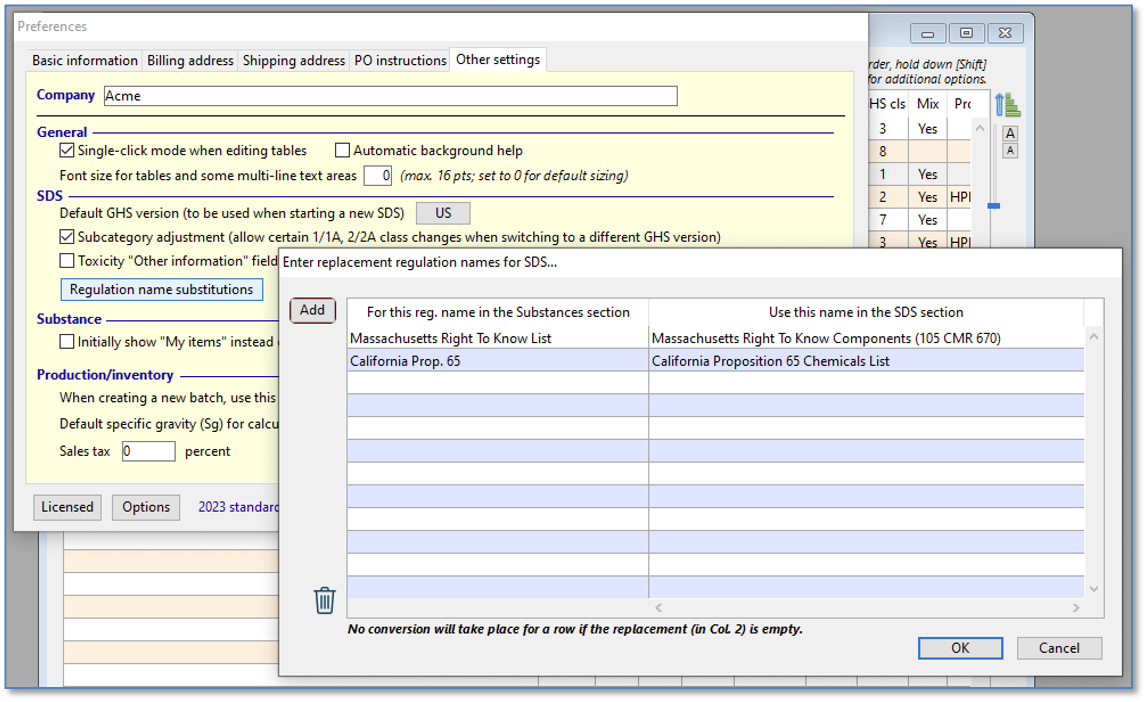
Regulation name substitutions dialog (Preferences).
You can enter one or more
names of regulations as they appear in SDS Section 15 in the left-hand column,
and then enter the desired names for the same regulations in the right-hand
column. (After clicking on the OK button, you must also click on the Save button for the Preferences dialog; otherwise, the
changes you specify will not be remembered beyond the current session.)
Then, when executing the “Convert
regulation names to preferred” menu item, the program will make the changes
you specify for the highlighted SDS records.
The
Regulation name substitutions dialog also has another purpose: When you add
chemical components to SDS Section 3, if the components have regulations
associated with linked Substance records, the program will convert the names as
necessary when copying them into Section 15 of the SDS.
[Rev. 11.1.2024]